Manga Tone Shader Specifications
"Manga Tone Shader" is a toon shader specialized for manga/comic expressions, designed specifically for toon rendering.
Characteristics
Unlike typical toon shaders, it allows color assignment per highlight region using dedicated lighting.
It uses three lights (Key, Fill, Back) colored red (#ff0000), green (#00ff00), and blue (#0000ff). The shader extracts the contribution from each and maps colors or patterns per region.
Note
- The three lights are created in the light collection under "B: Lighting".
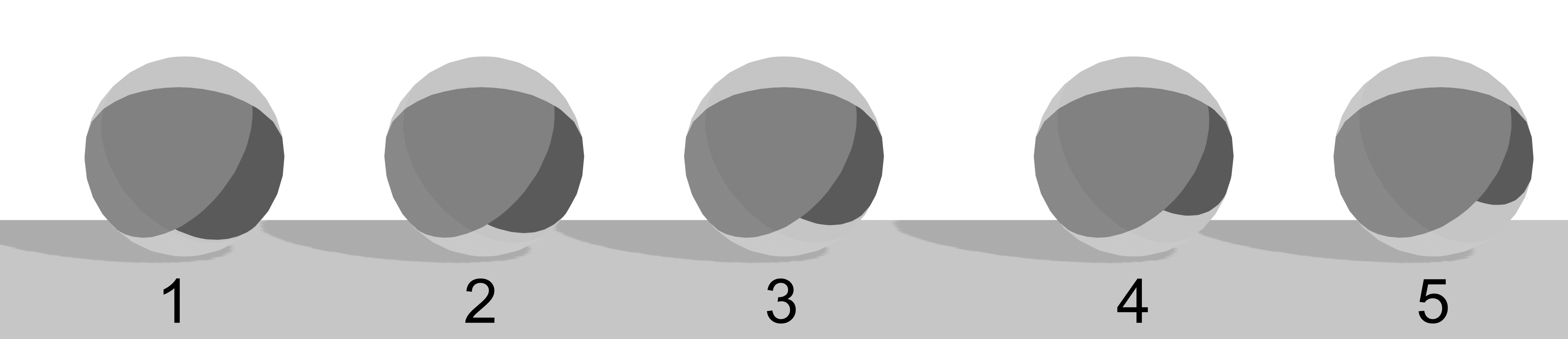
- The light regions depend not only on offset values but also on light strengths in the light collection. Adjust light strengths first, then tweak offsets.
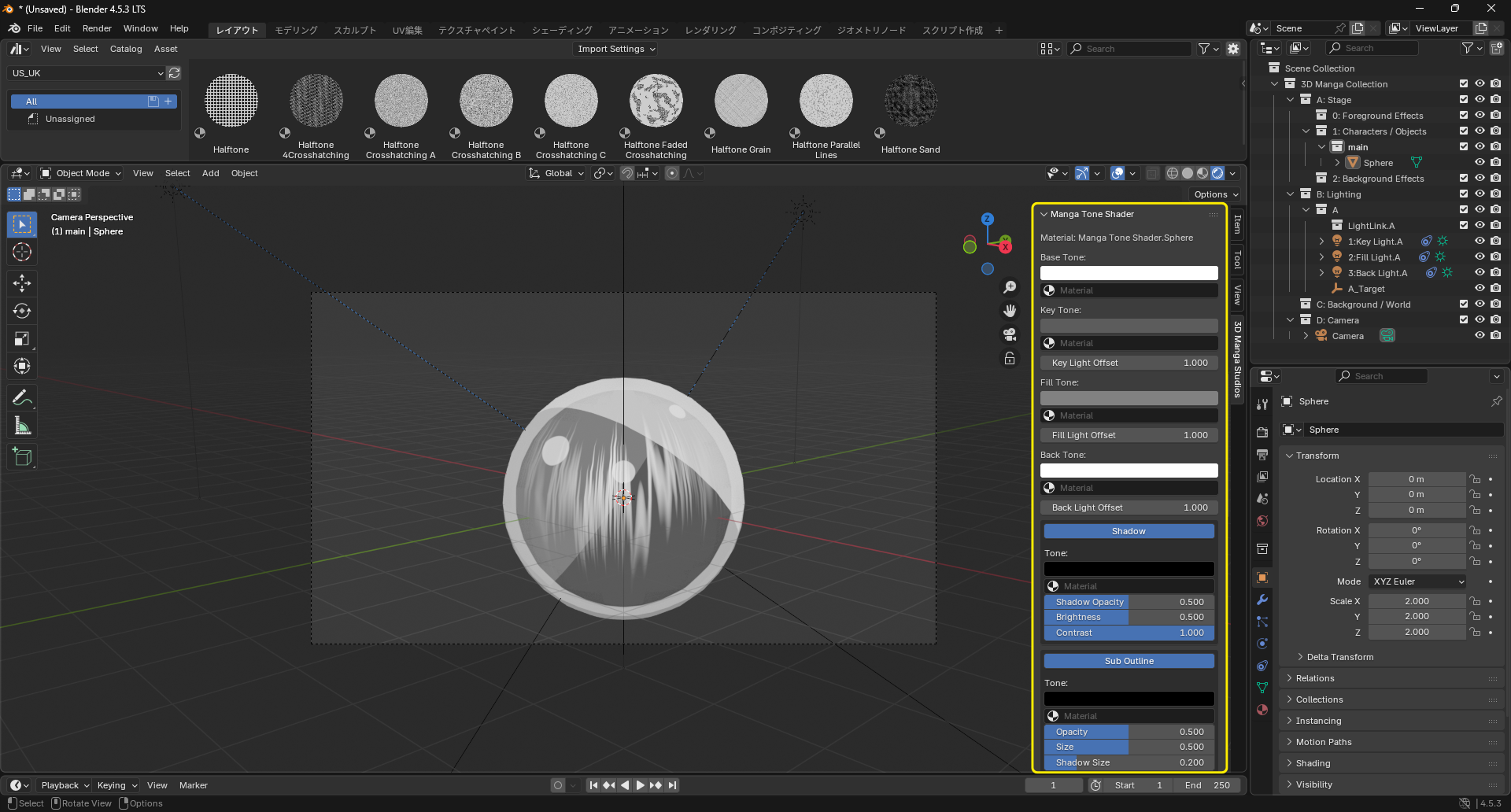
Each lit side has its own color input. Drag & drop paid materials onto the material inputs below the color fields to project patterns onto those regions.
Structure
Manga Tone Shader has the following structure:
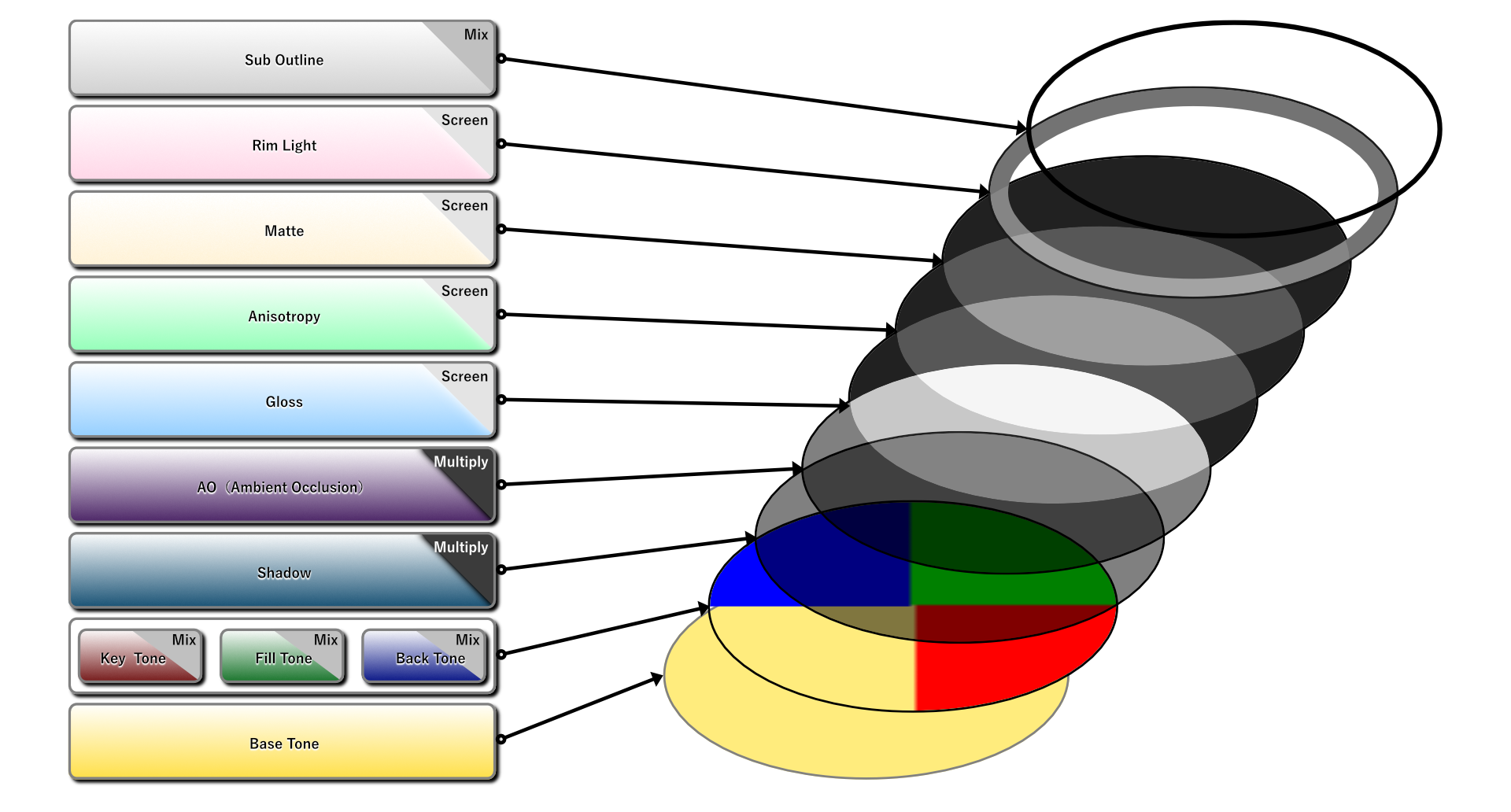
Property list and effects
Property Index
- Base Tone
- Key Tone
- Fill Tone
- Back Tone
- Shadow
- Sub Outline
- AO (Ambient Occlusion)
- Soft Shadow Tone
- Hard Shadow Tone
- Gloss
- Anisotropy
- Mat
- Rim Light
Node image

Property list
Base Tone
- Color: Base color.
- Material: Drop slot for an Asset Browser material.
Key Tone
- Color: Color for the key-lighted area. Drag & drop a material in the slot to overlay a pattern.
- Material: Drop slot for an Asset Browser material.
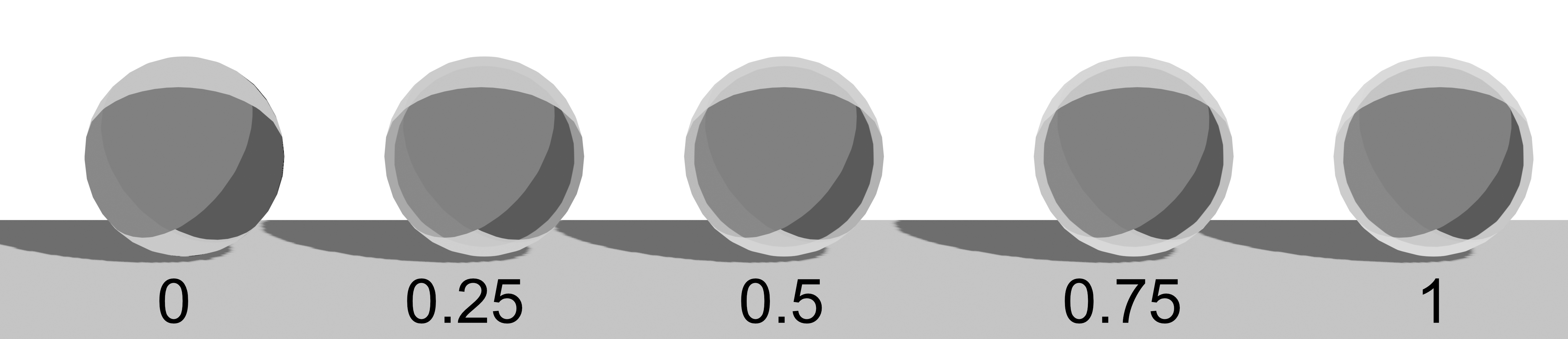
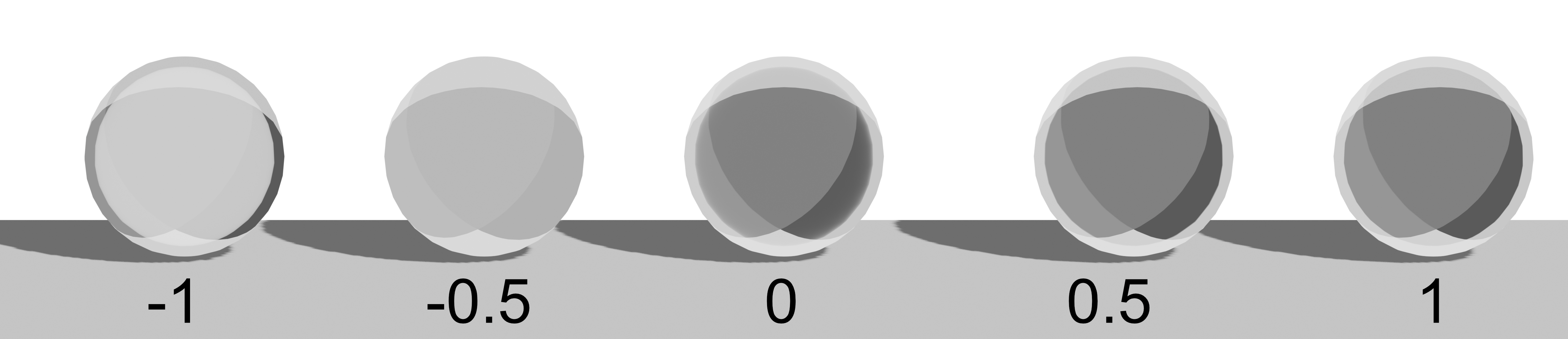
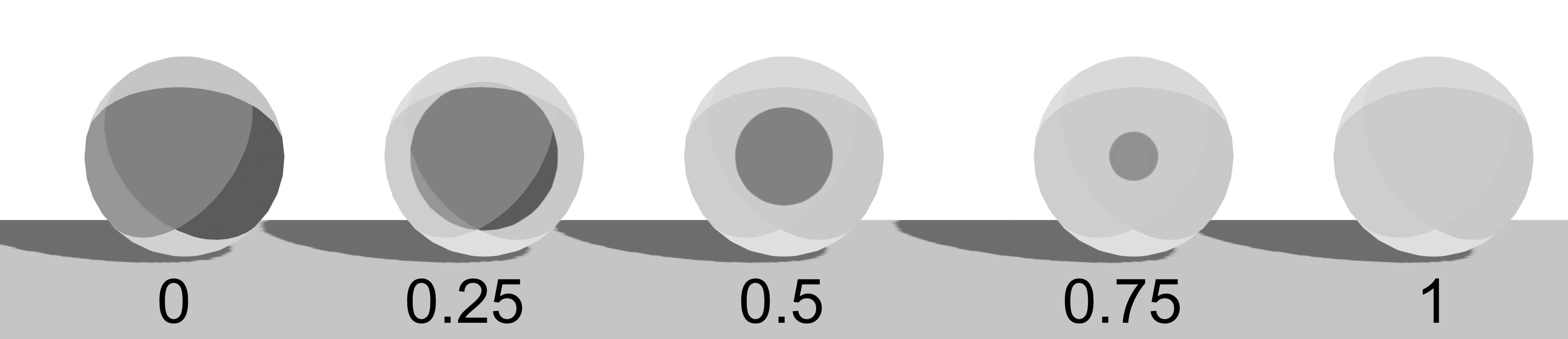
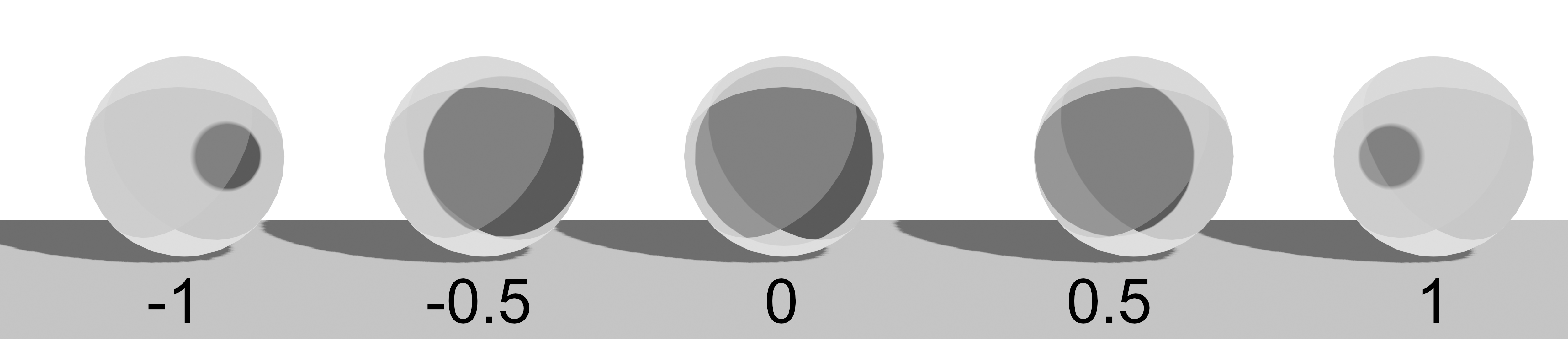
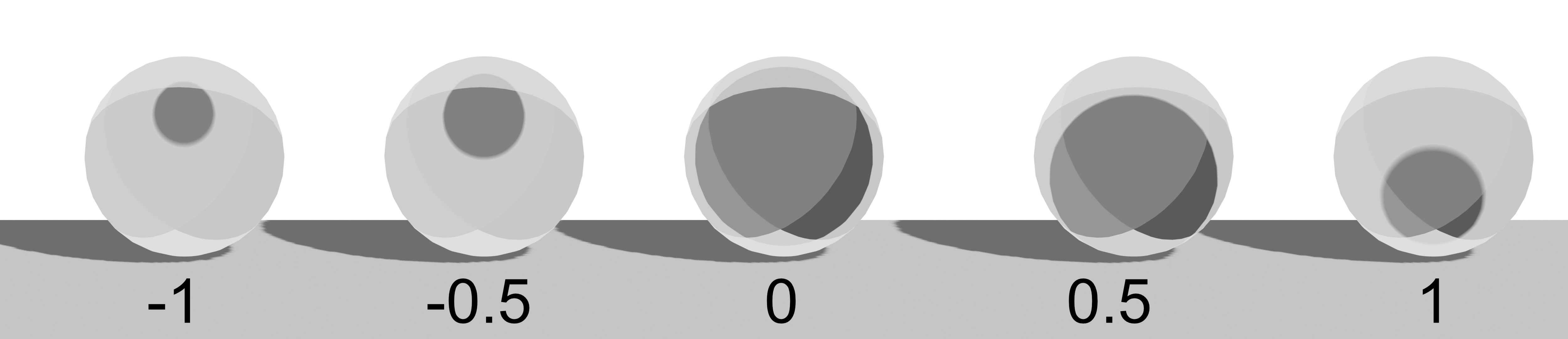
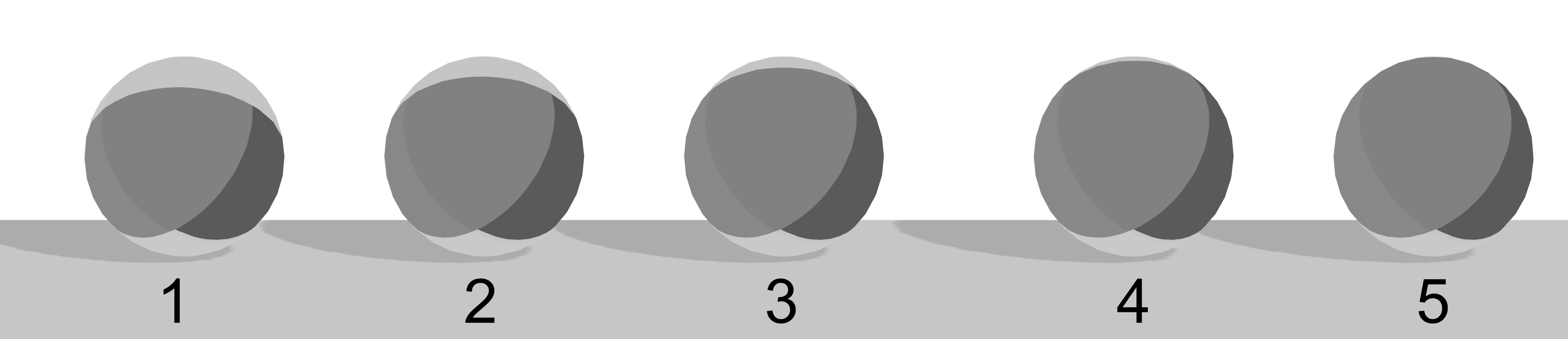
- Key Light Offset: Offset for key light.
Fill Tone
- Color: Color for the fill-lighted area. Drag & drop a material to overlay a pattern.
- Material: Drop slot for an Asset Browser material.
- Fill Light Offset: Offset for fill light.
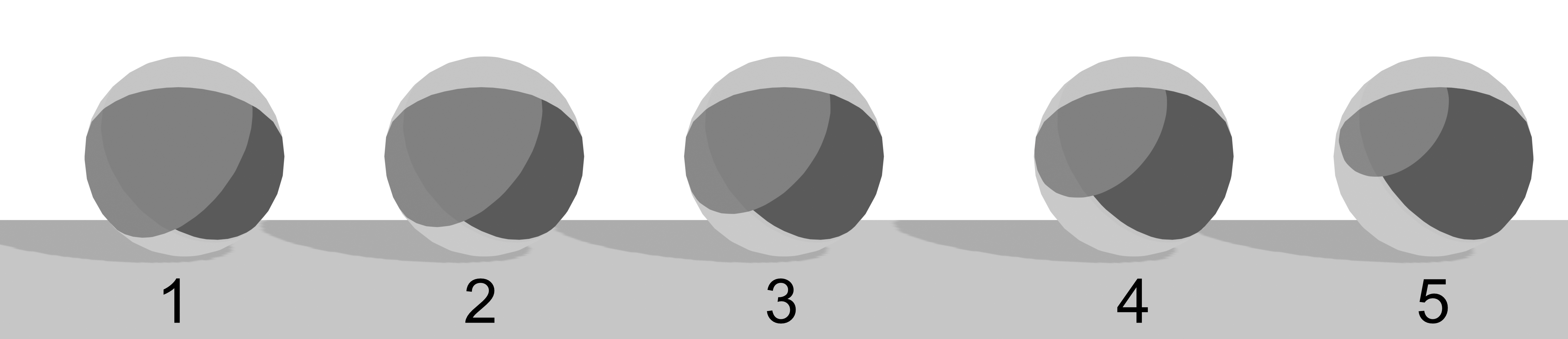
Back Tone
- Color: Color for the back-lighted area. Drag & drop a material to overlay a pattern.
- Material: Drop slot for an Asset Browser material.
- Back Light Offset: Offset for back light.
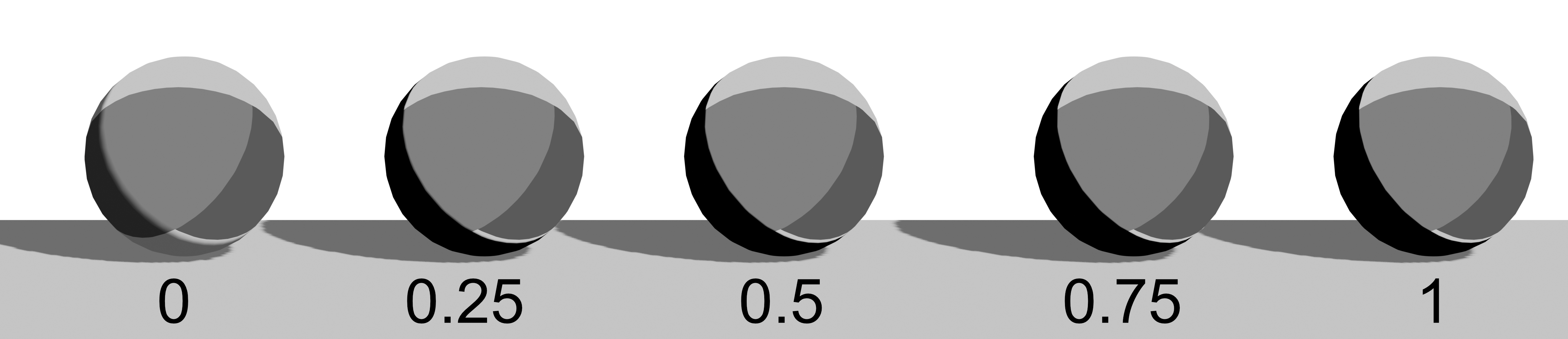
Shadow
Shadow settings.
- Color: Shadow color.
- Material: Drop slot for an Asset Browser material.
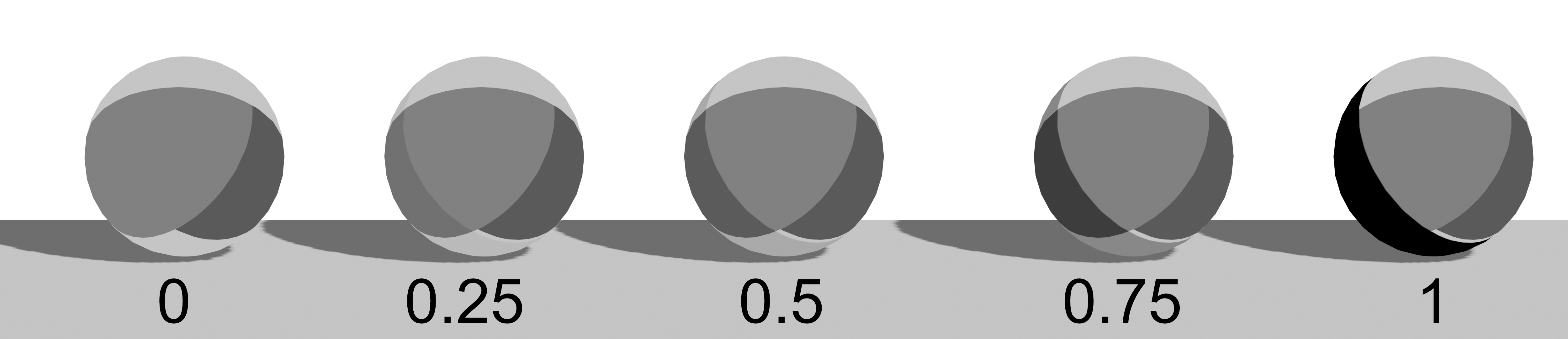
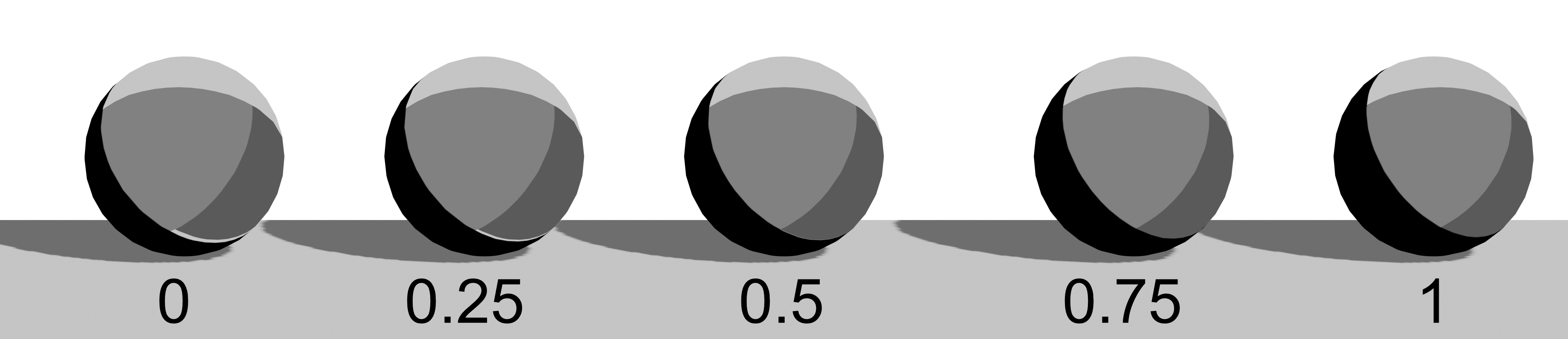
- Shadow Opacity: Shadow opacity.
- Brightness: Shadow brightness.
- Contrast: Shadow contrast.
Sub Outline
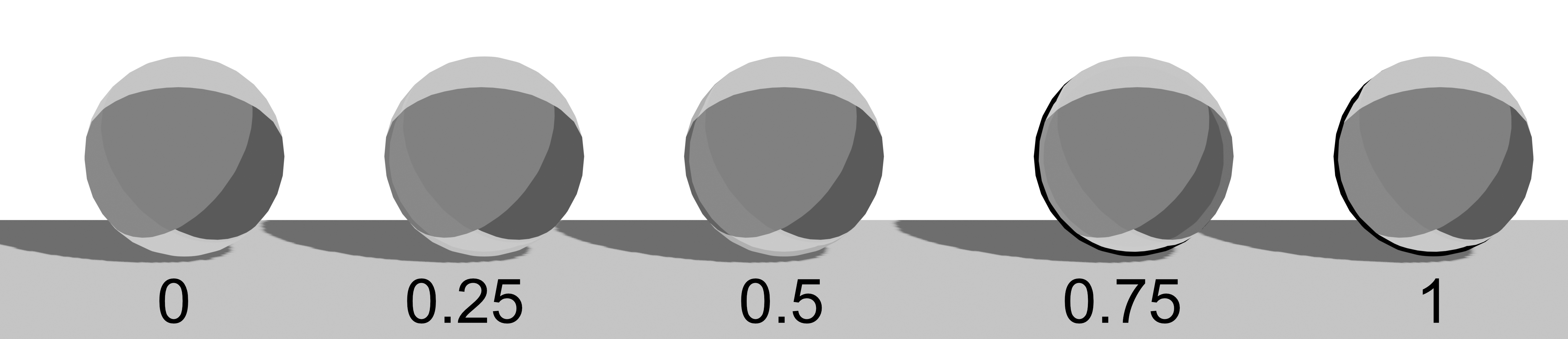
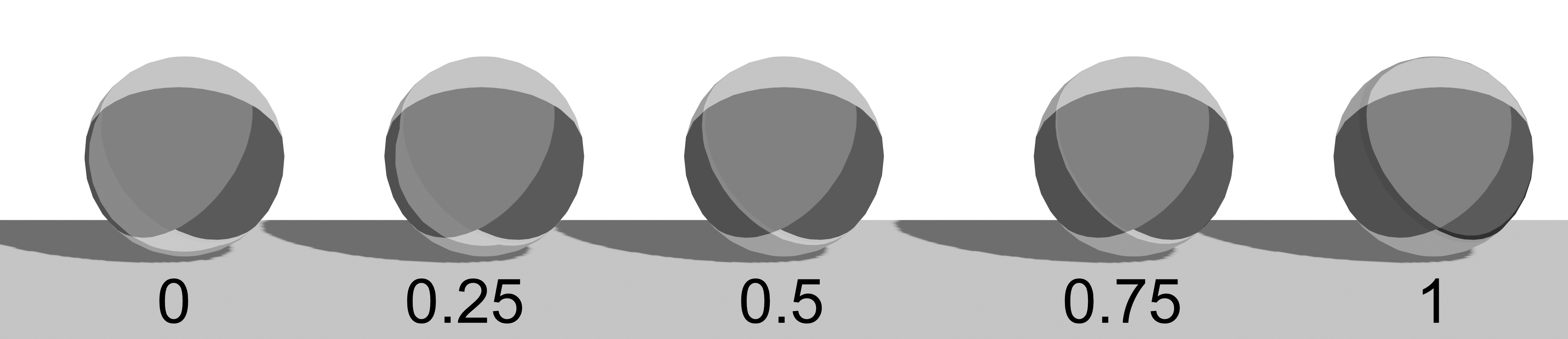
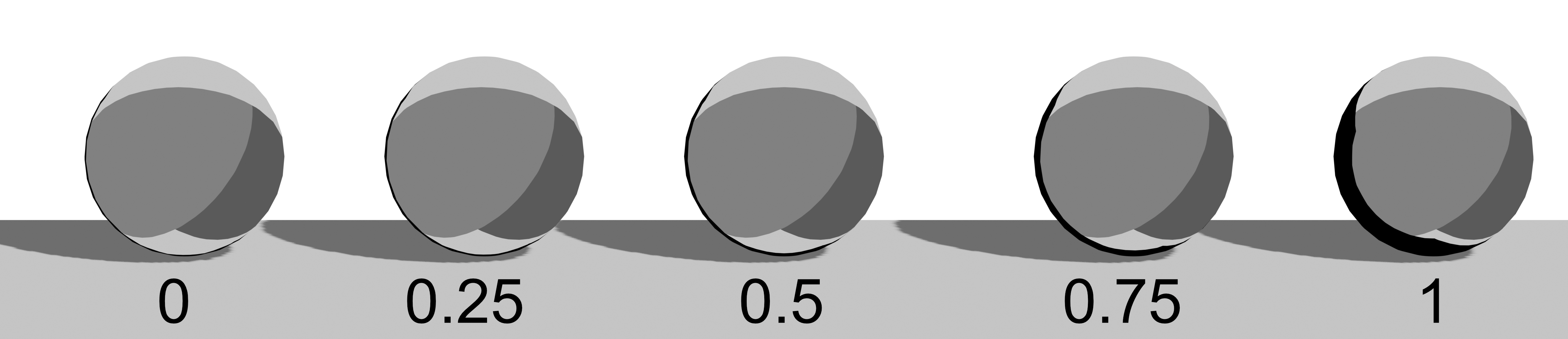
Inner outline settings.
- Color: Inner outline color.
- Material: Drop slot for an Asset Browser material.
- Opacity: Sub outline opacity.
- Size: Sub outline size.
- Shadow Size: Shadow size.
AO (Ambient Occlusion)
Ambient occlusion settings.
- Opacity: AO opacity.
- Shadow Opacity: AO shadow opacity.
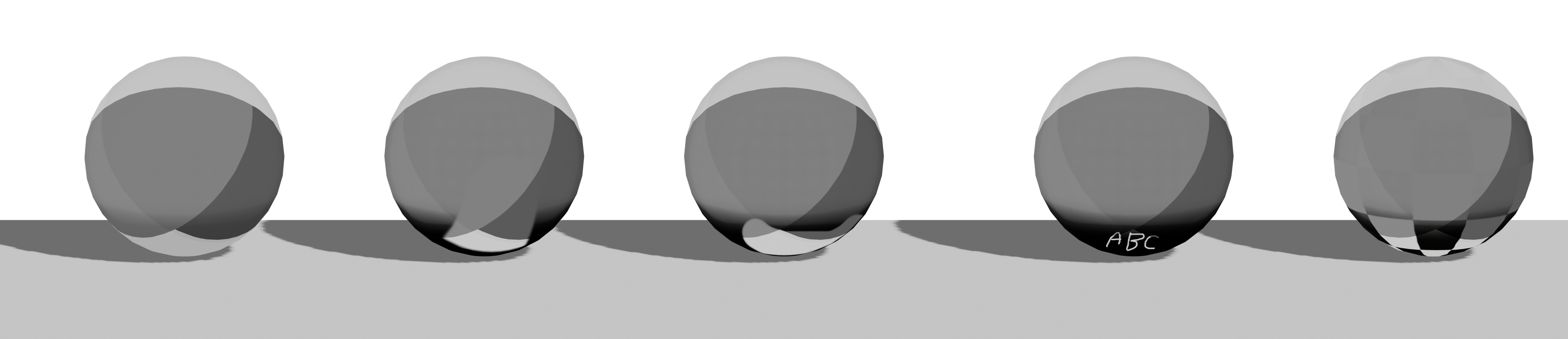
- Mask: Mask to limit AO. Create a grayscale image with the New button in the image selector below.
- Soft/Hard Switch: Balance between soft and hard shadows.
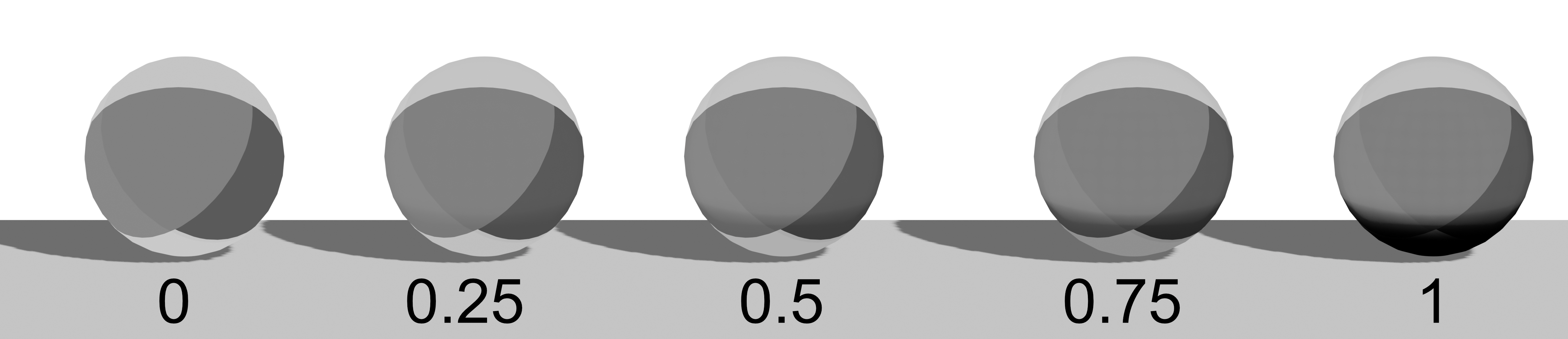
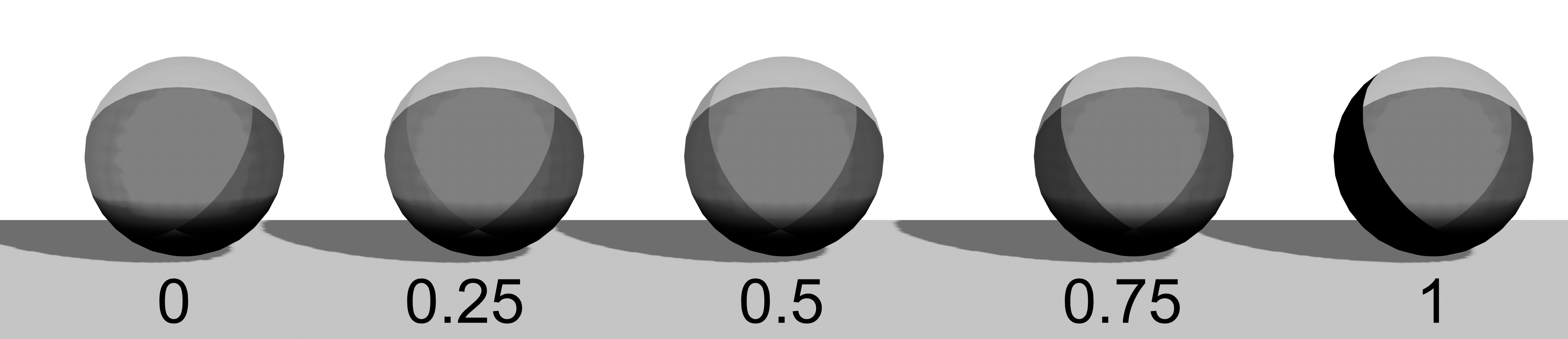
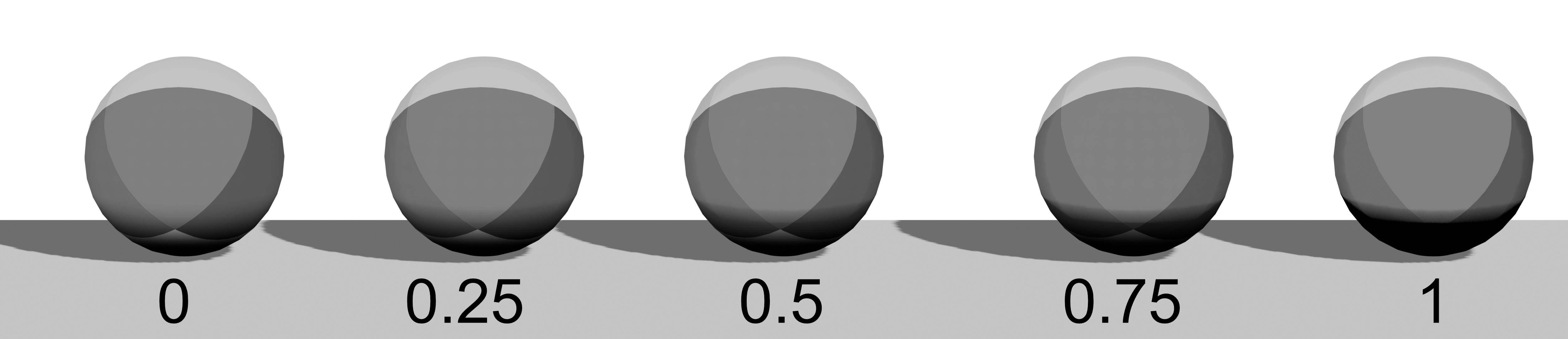
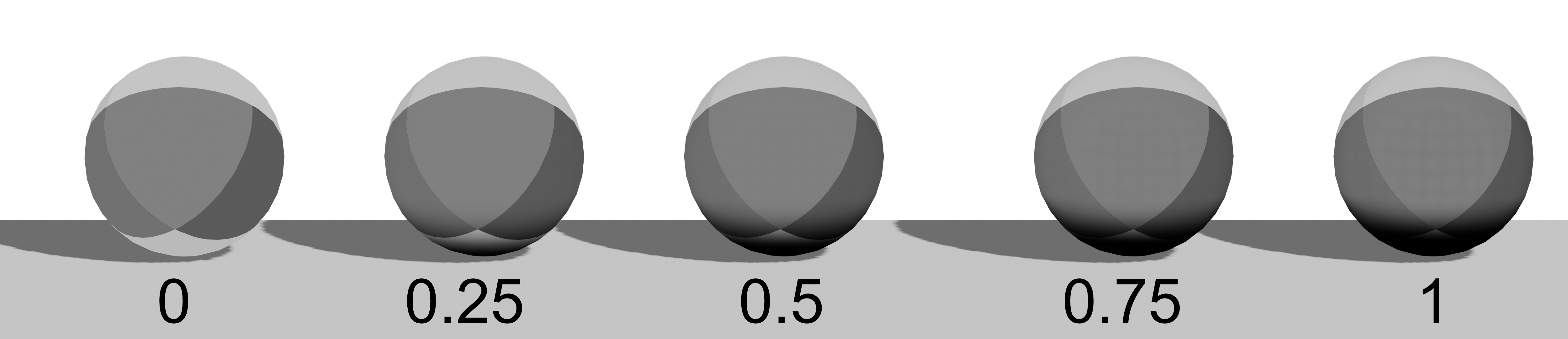
Soft Shadow Tone
- Soft Intensity: Soft shadow intensity.
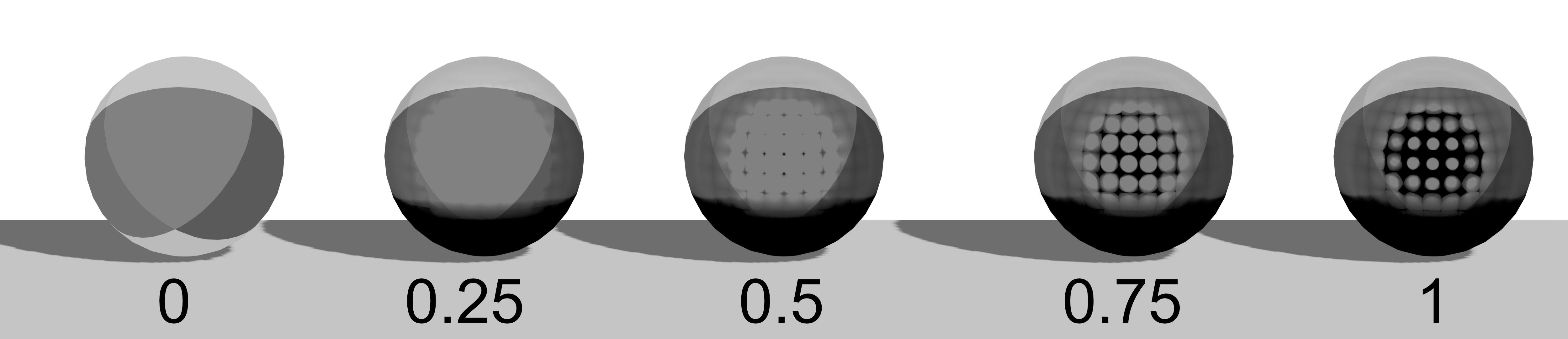
Hard Shadow Tone
- Hard Intensity: Hard shadow intensity.
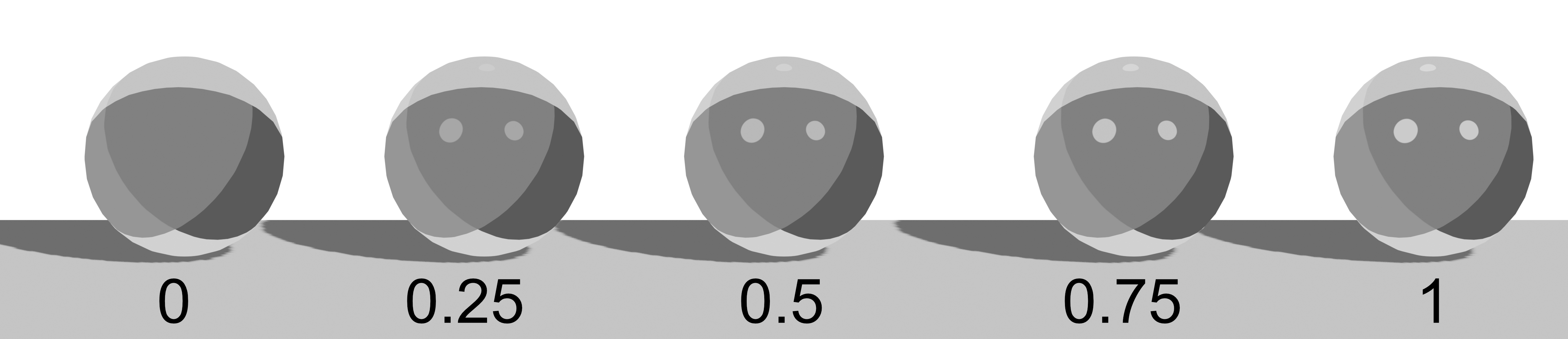
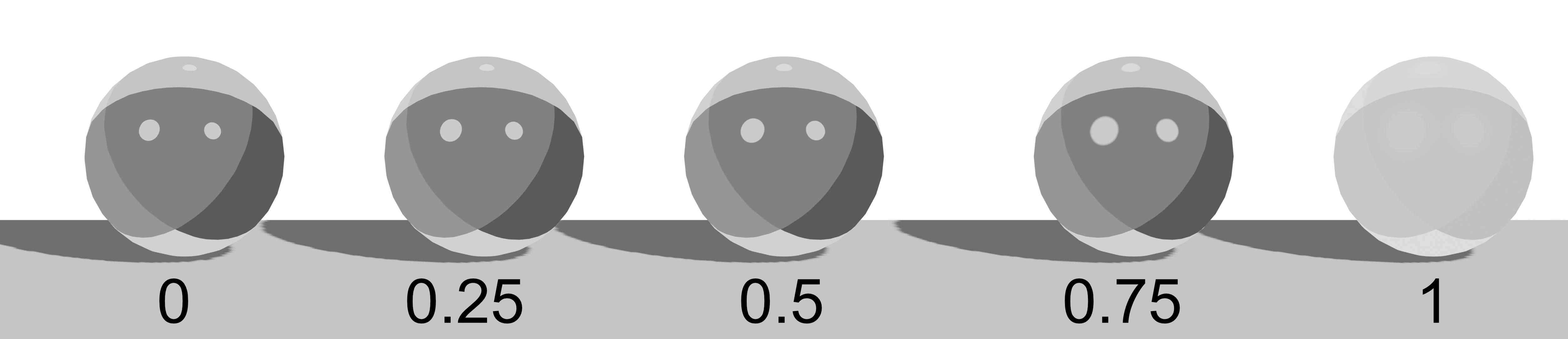
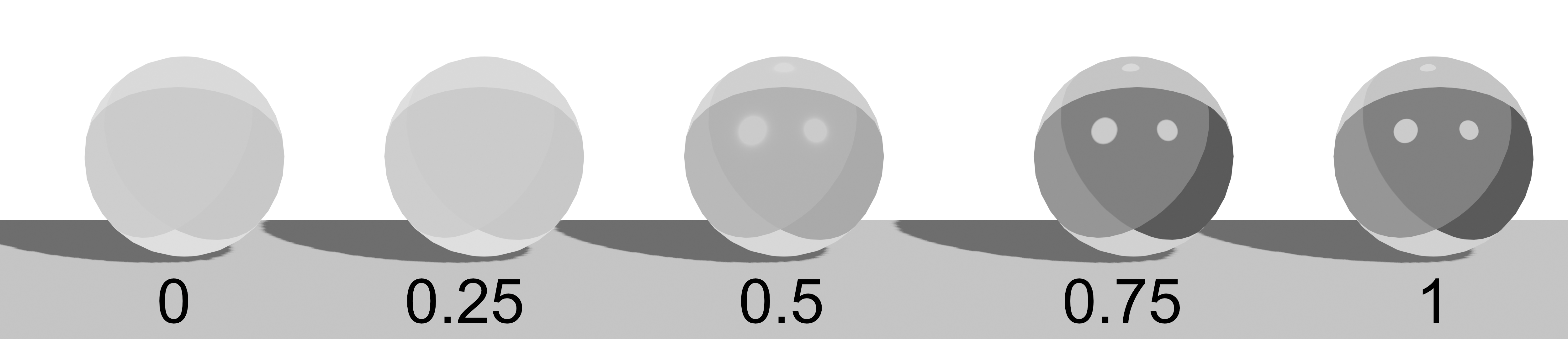
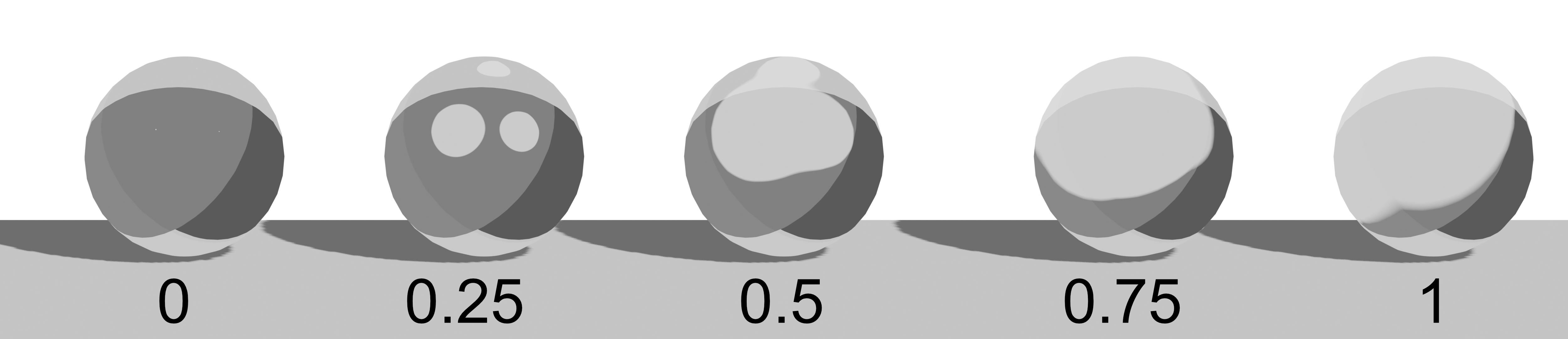
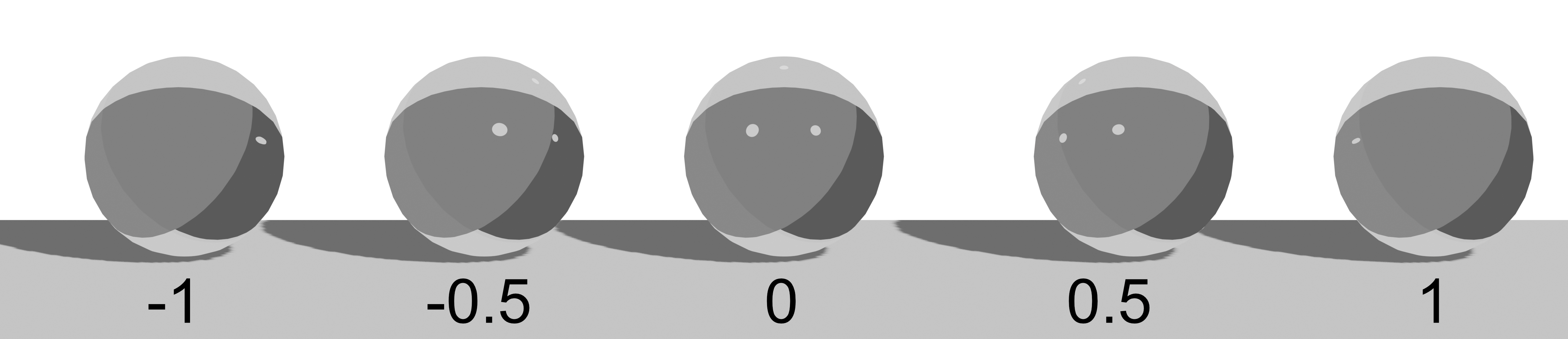
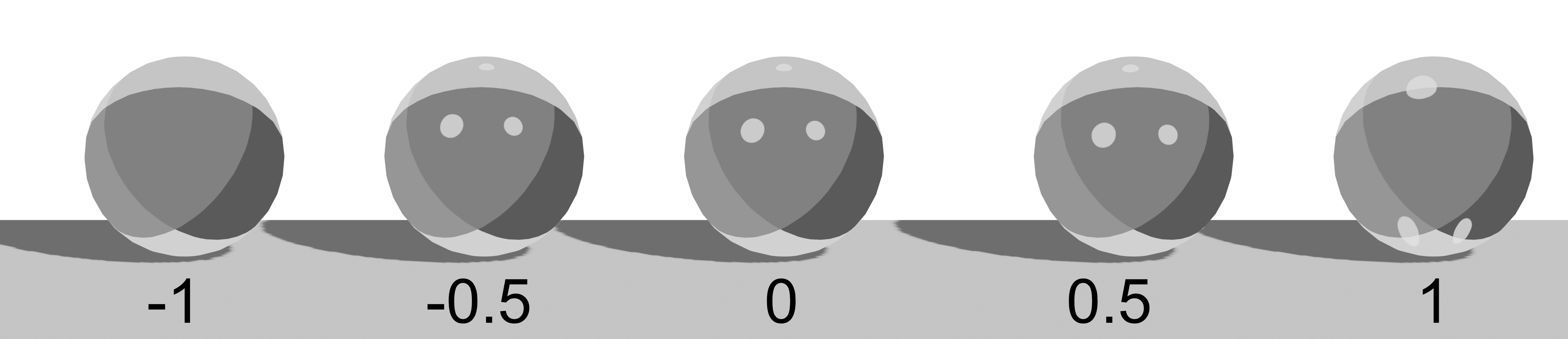
Gloss
Gloss settings.
- Color: Gloss color.
- Material: Drop slot for an Asset Browser material.
- Opacity: Gloss opacity.
- Brightness: Gloss brightness.
- Contrast: Gloss contrast.
- Spread: Gloss spread.
- Offset X: Gloss X offset.
- Offset Z: Gloss Z offset.
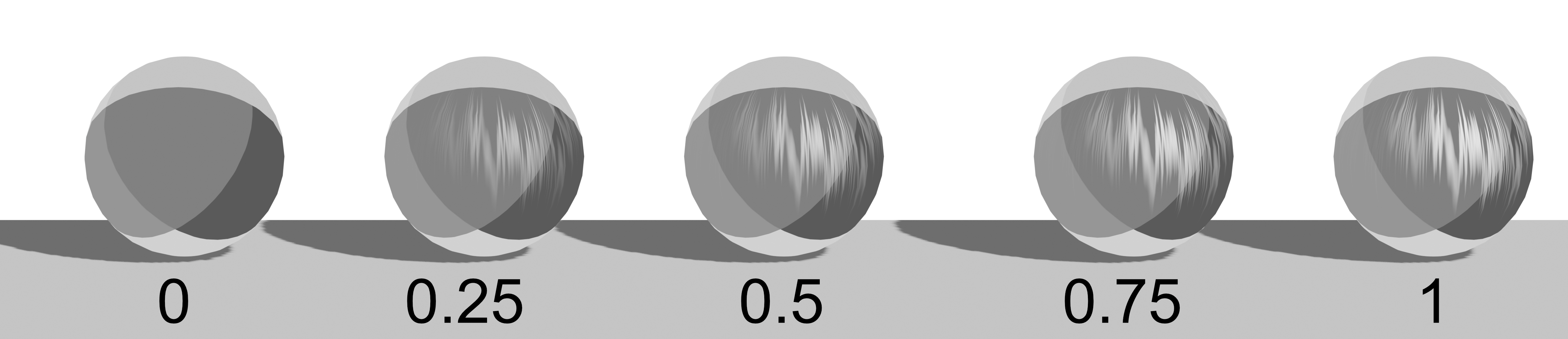
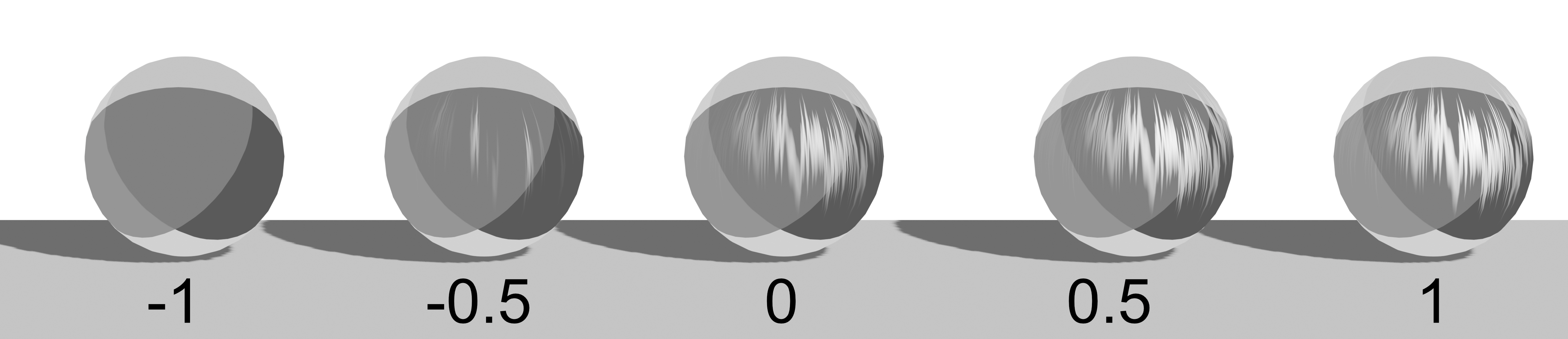
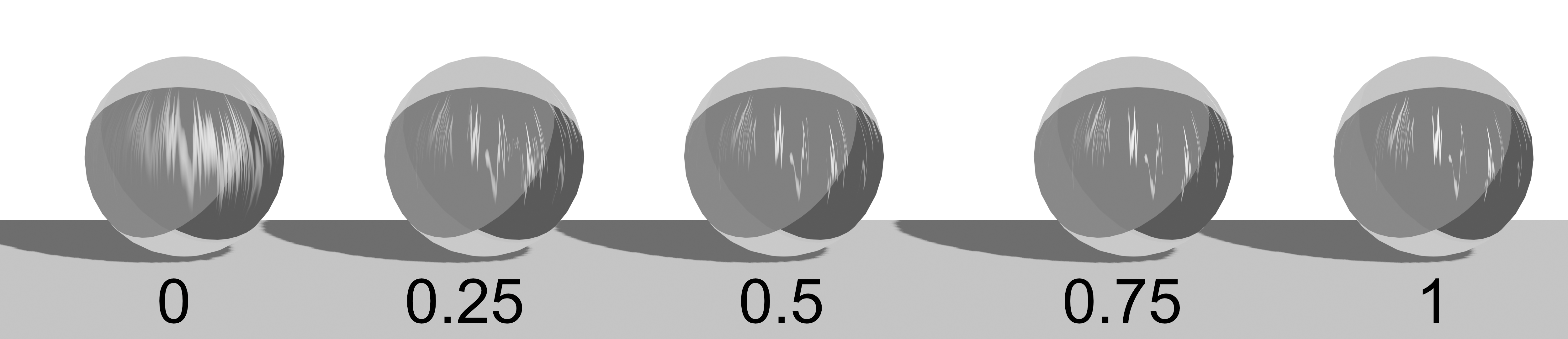
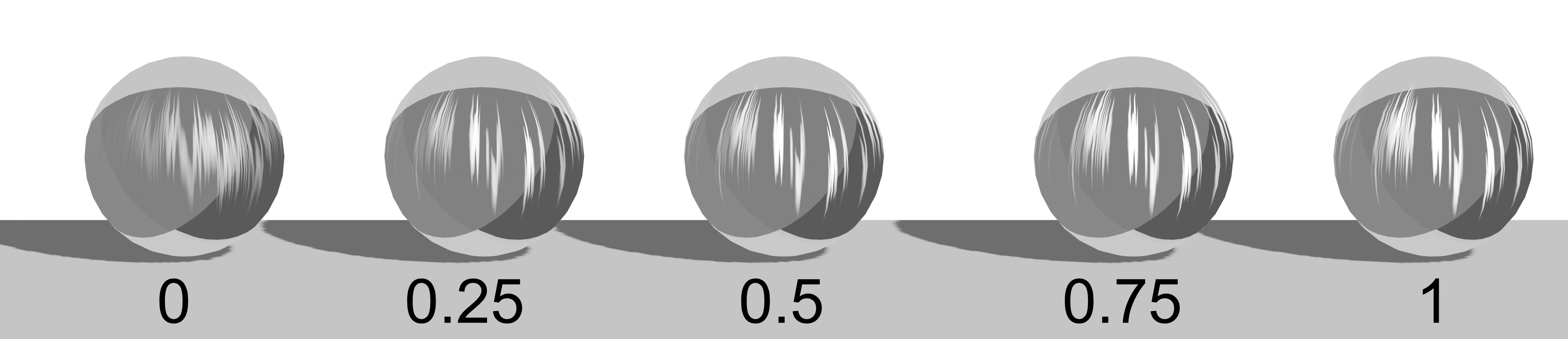
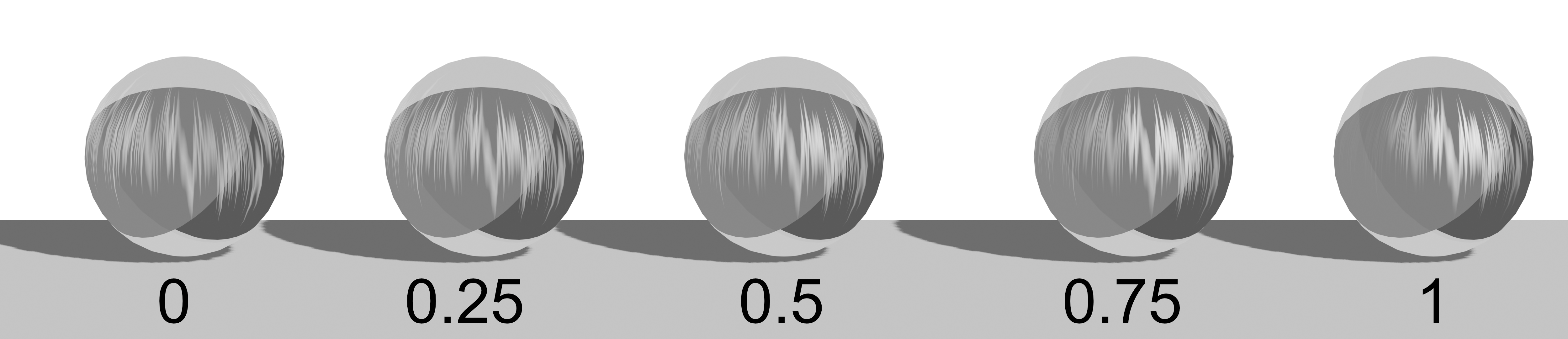
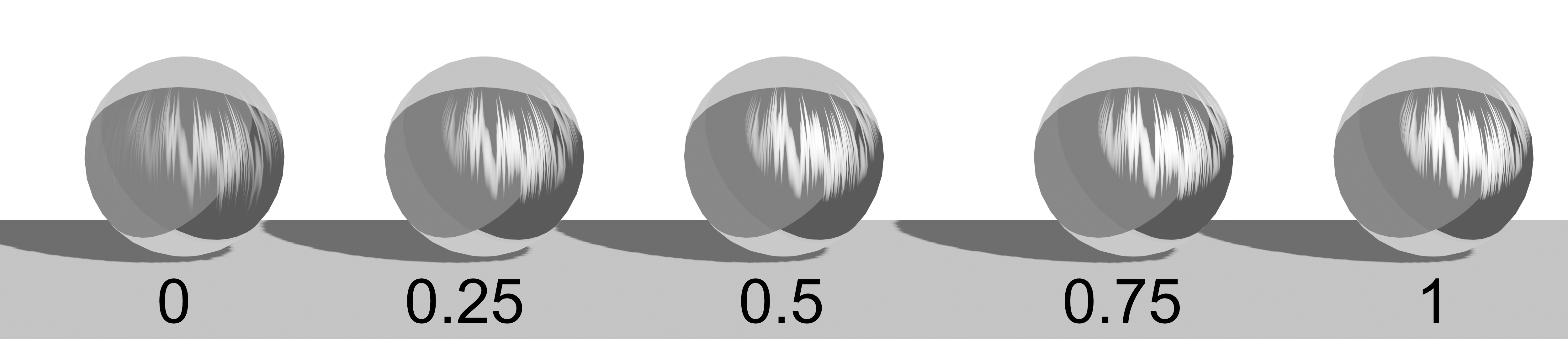
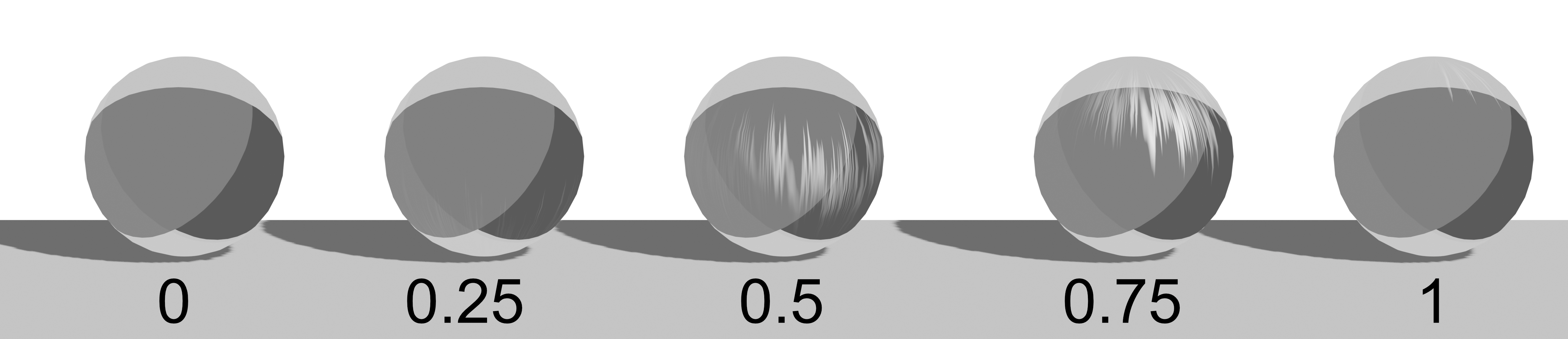
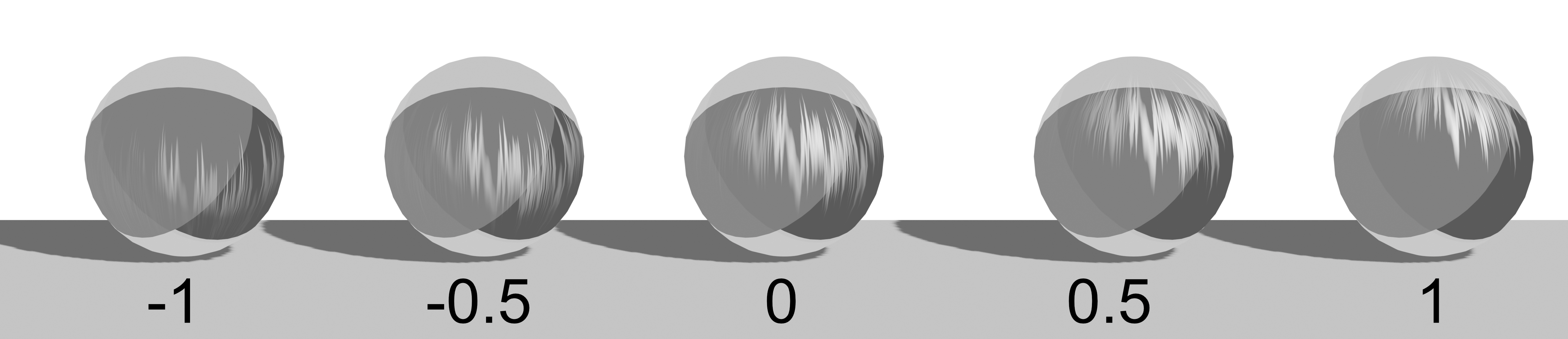
Anisotropy
Anisotropic highlight settings.
- Color: Color for hair-like sheen; can drop a material to overlay a pattern.
- Material: Drop slot for an Asset Browser material.
- Opacity: Anisotropy opacity.
- Brightness: Anisotropy brightness.
- Contrast: Anisotropy contrast.
- Density: Anisotropy density.
- Shadow Opacity: Anisotropy shadow opacity.
- Shadow Contrast: Anisotropy shadow contrast.
- Offset Z: Anisotropy Z offset.
- Camera View Offset: Offset relative to camera view.
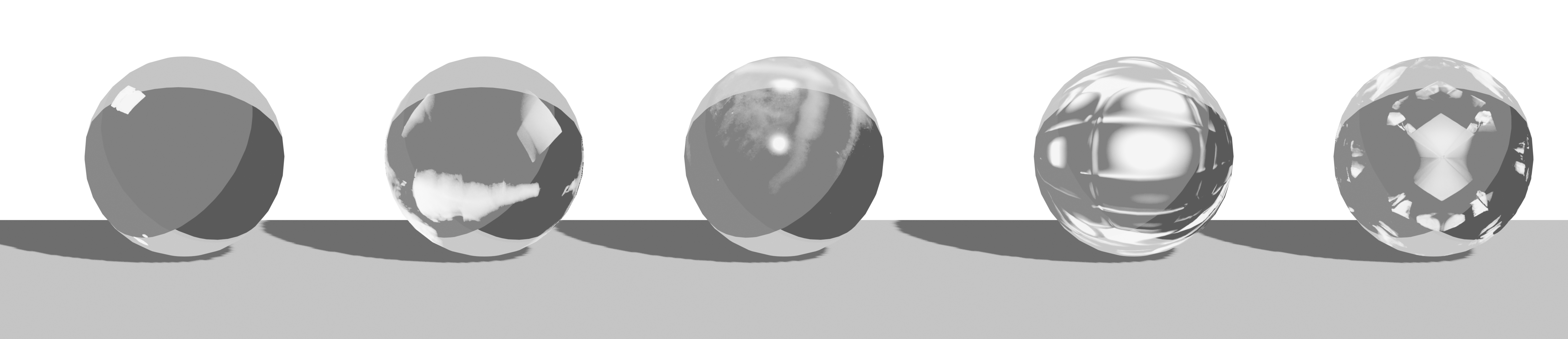
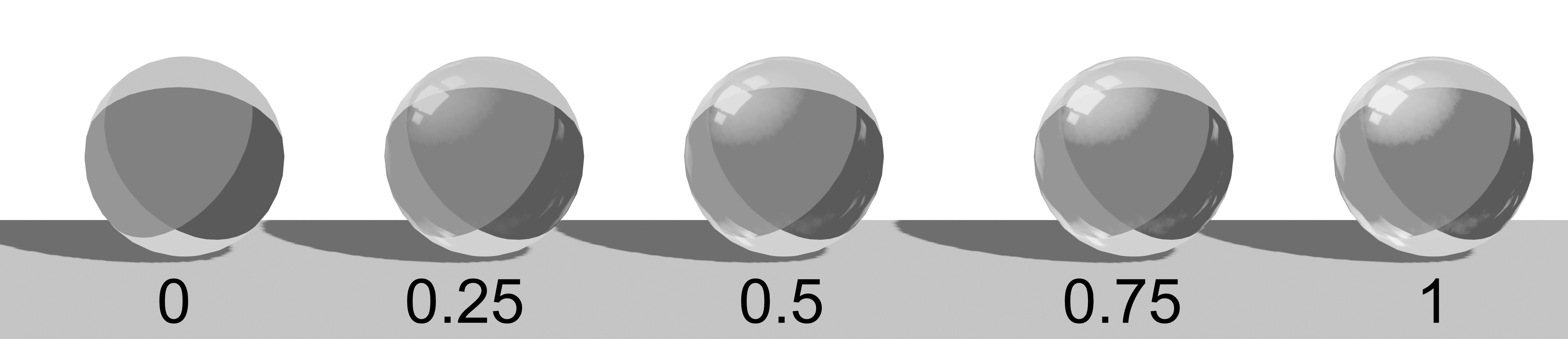
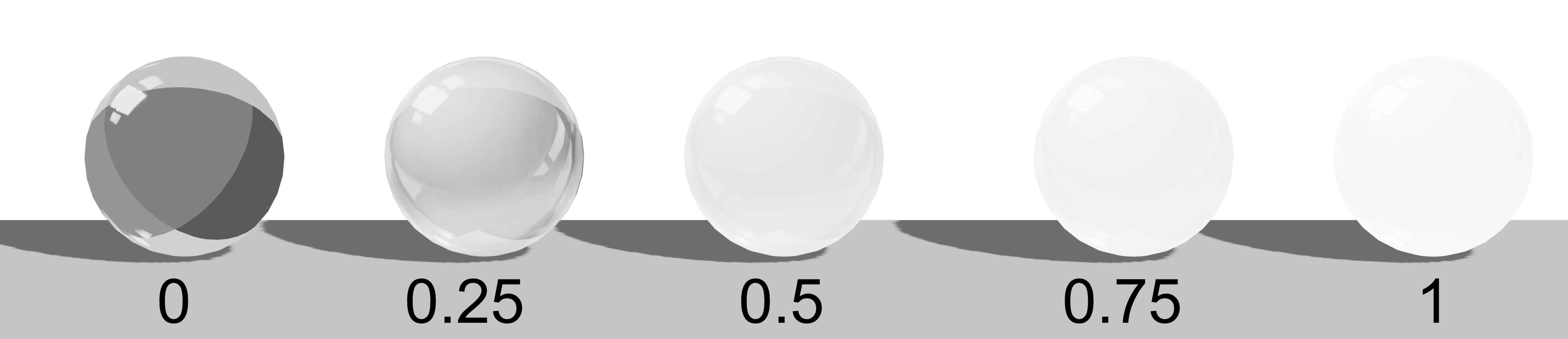
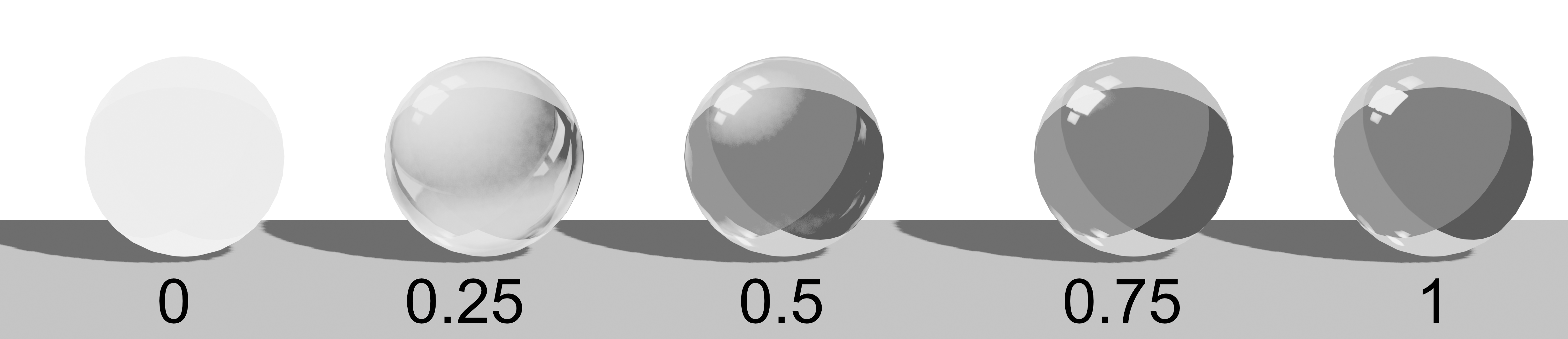
Matte
Texture used to simulate material traits.
- Color: Color; use the image chooser to create a new grayscale texture.
- Opacity: Matte opacity.
- Brightness: Matte brightness.
- Contrast A: Matte contrast A.
- Contrast B: Matte contrast B.
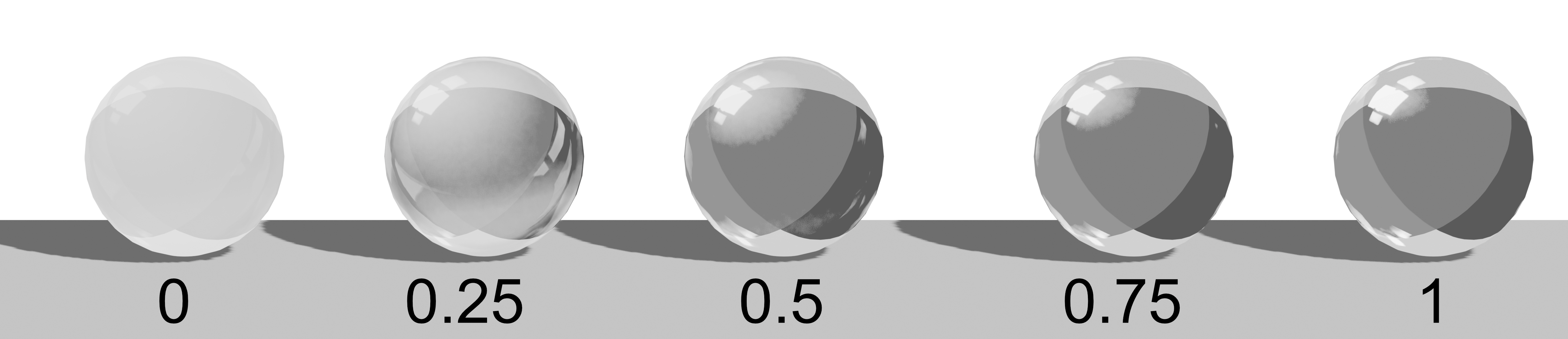
Rim Light
Rim light settings.
- Color: Color for the inner outline; can drop a material to overlay a pattern.
- Material: Drop slot for an Asset Browser material.
- Opacity: Rim light opacity.
- Contrast: Rim light contrast.
- Width: Rim light width.
- Offset X: Rim light X offset.
- Offset Z: Rim light Z offset.