Manga Tone Shader
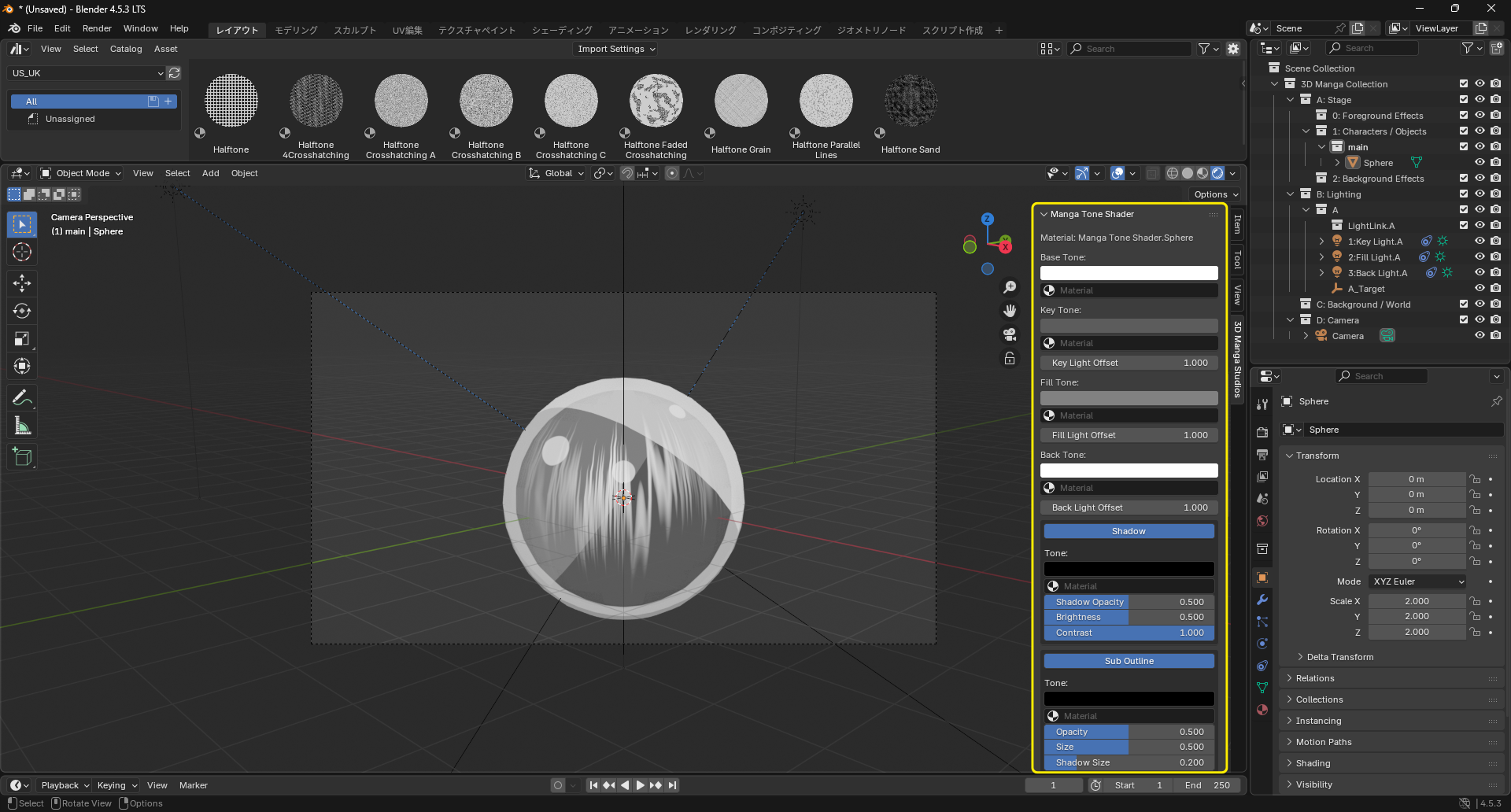
Finally, fine-tune the look of tone materials. This dedicated toon shader is designed to represent manga-like strokes and shadows.
Steps
- Select objects that have the "Manga Tone Shader" assigned.
- Open the Manga Tone Shader section under the 3D Manga Studios tab.
- Tweak parameters to match your artistic intent.
Note
Manga Tone Shader works only with the EEVEE render engine. It will not display correctly with Cycles.
Key properties
Light Offsets
| Enabled | Disabled |
|---|---|
 |
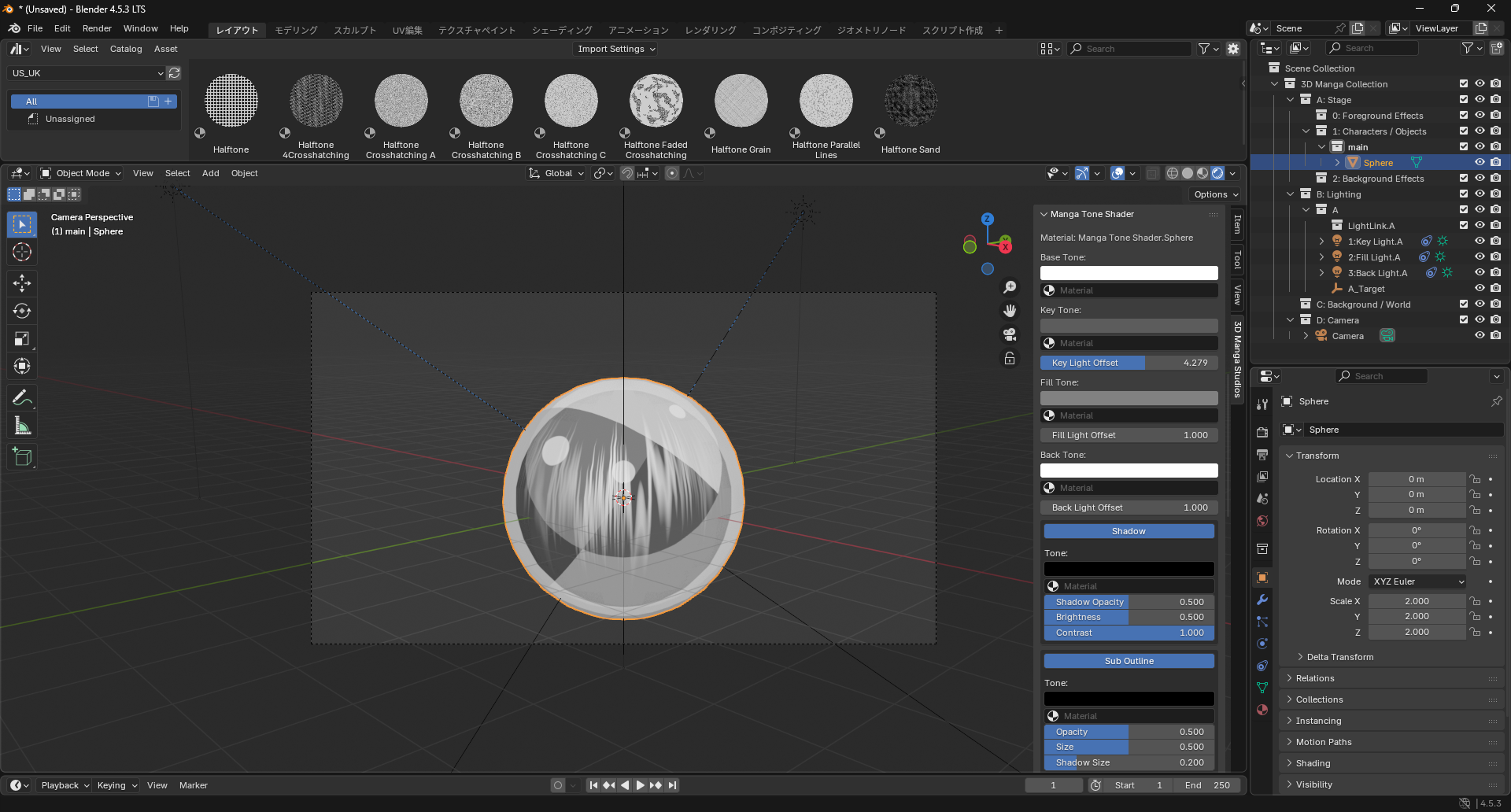 |
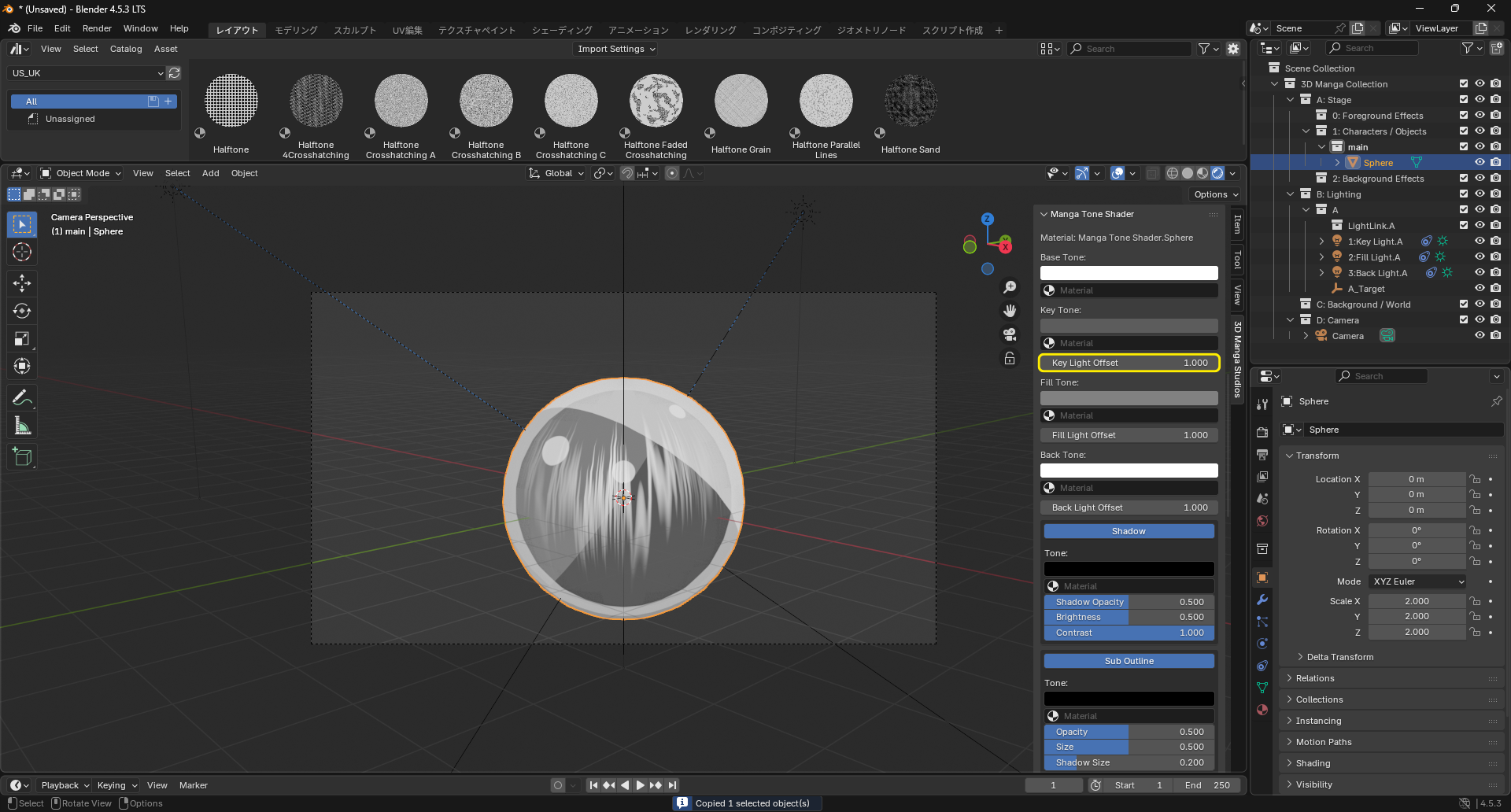
Adjust highlight spread for Key/Fill/Back lights.
Boolean toggles
| On | Off |
|---|---|
 |
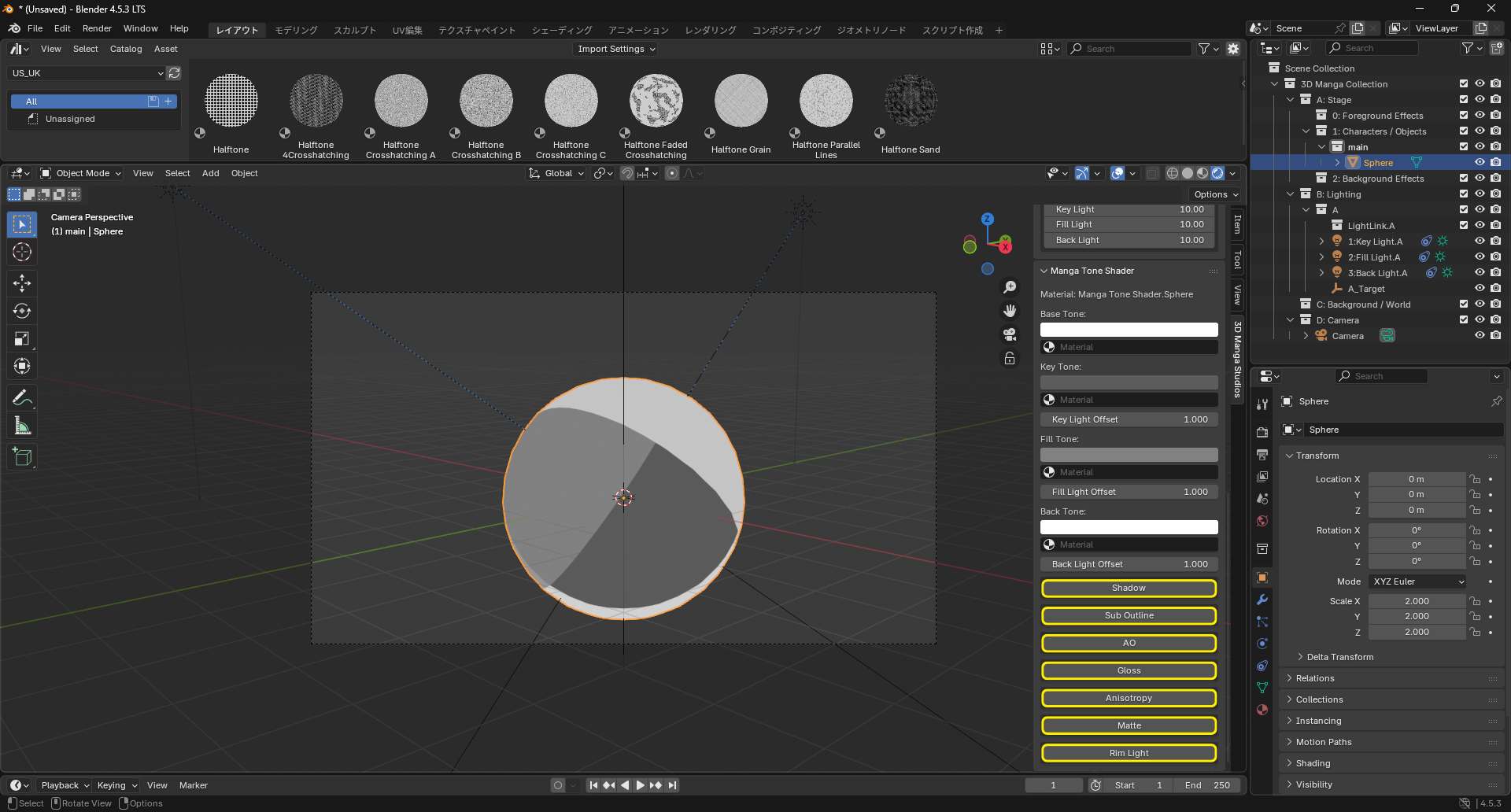 |
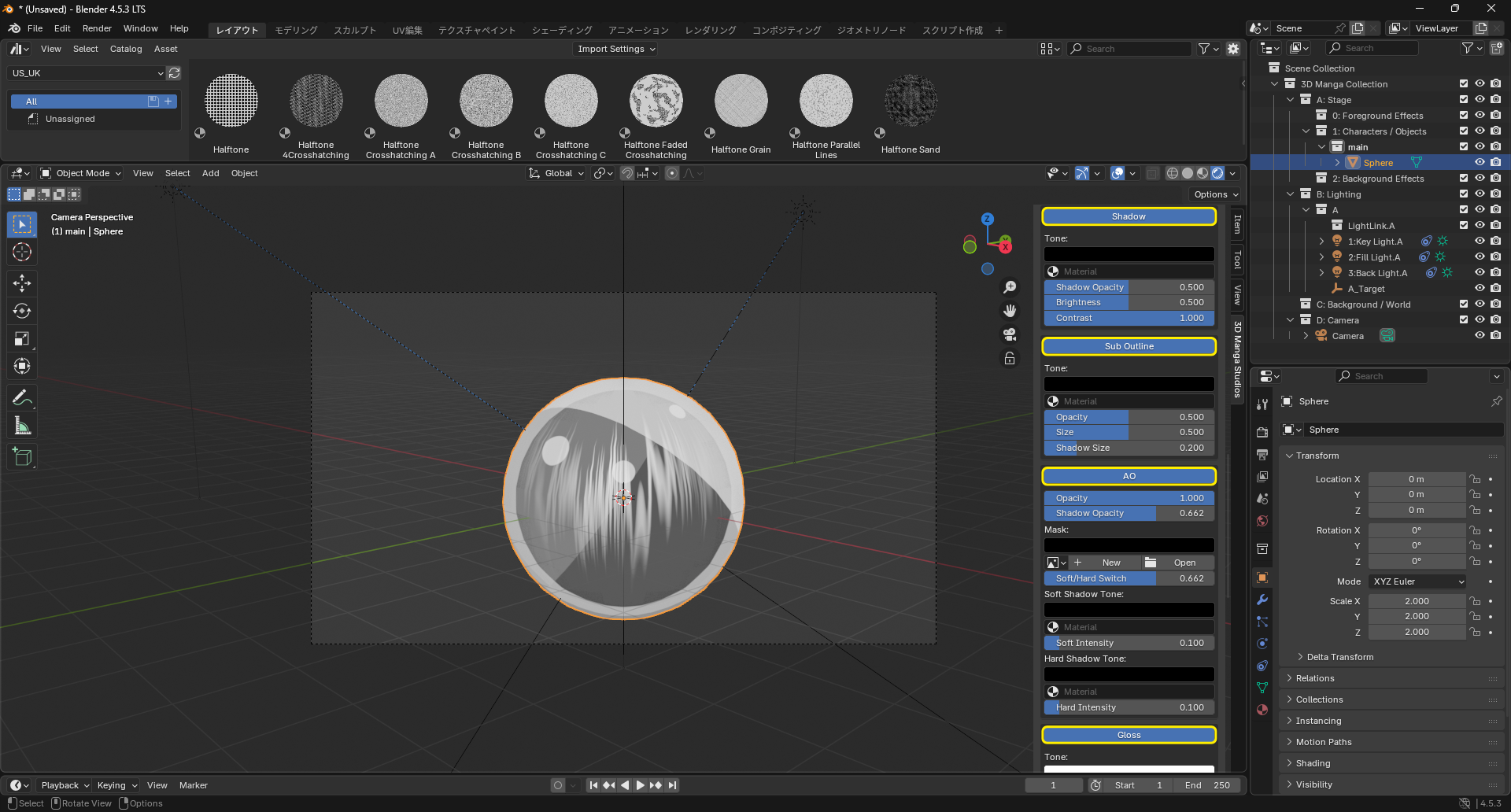
Toggle features like Shadow, AO, and Gloss. Disabling hides their child parameters and disables the effect.
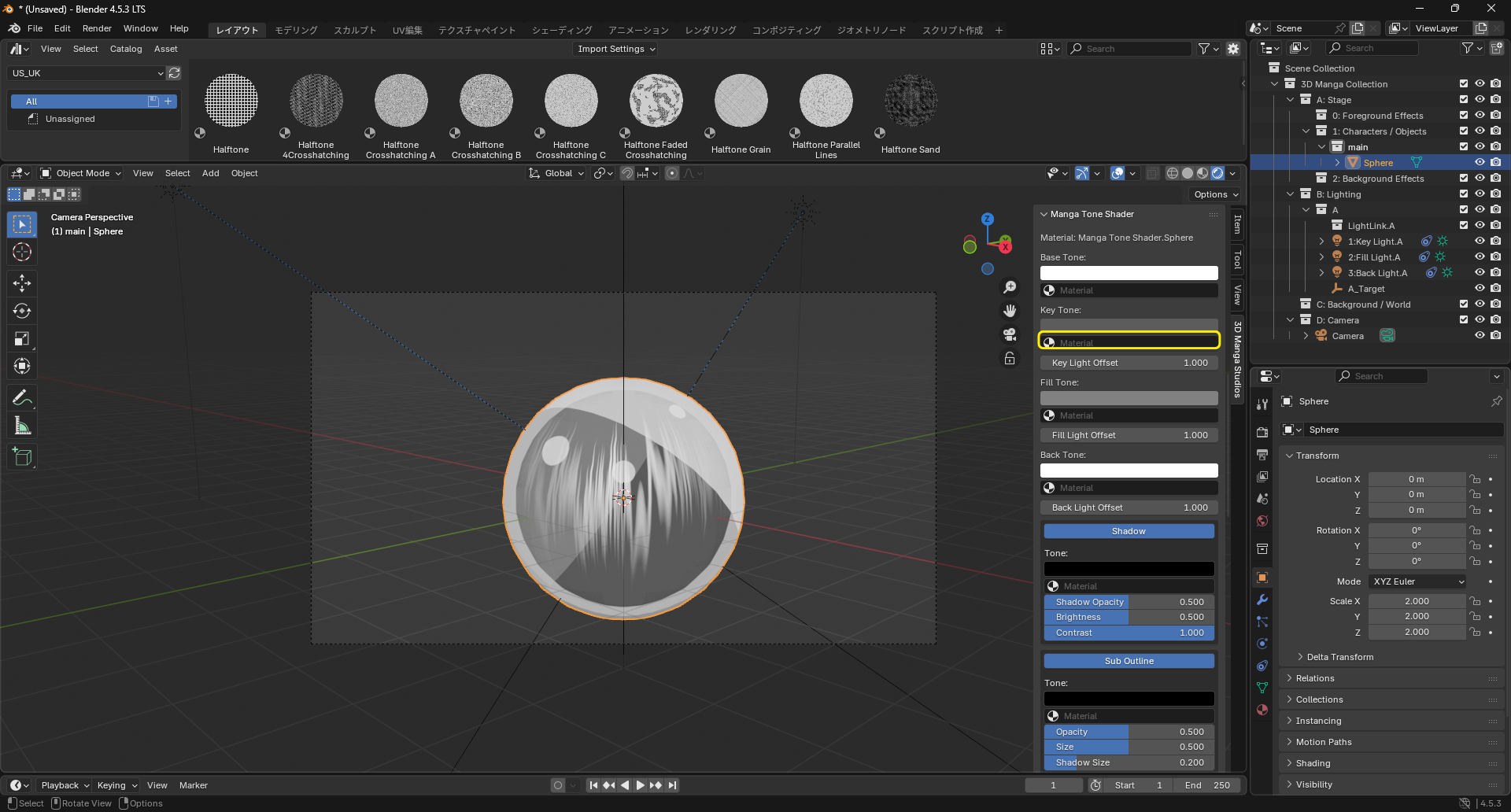
RGBA / Material drop slots
| Before | After |
|---|---|
 |
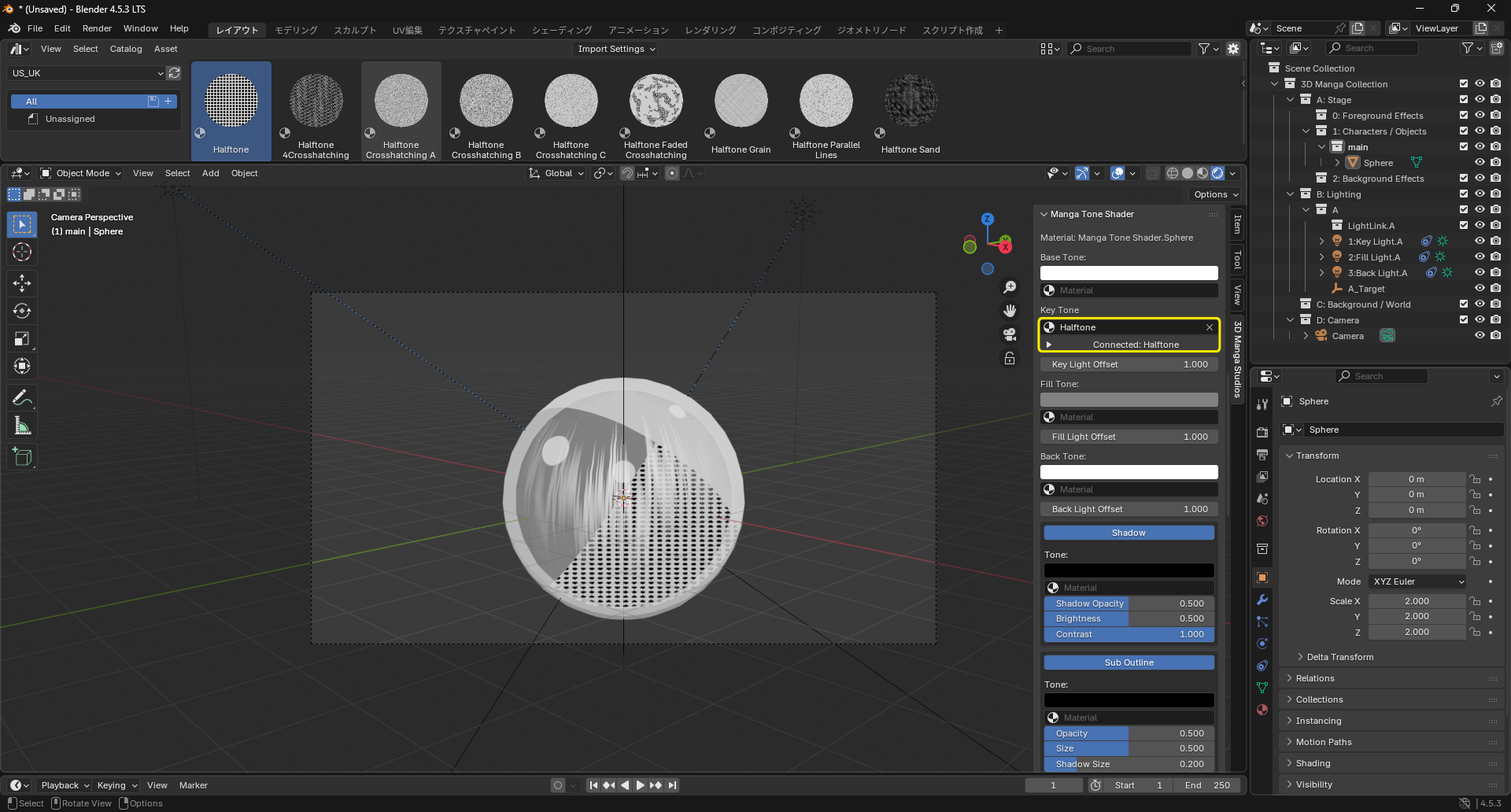 |
Use the color inputs and the drop slots to assign tone materials from Screen tones. Drag & drop materials to place patterns in specific regions.
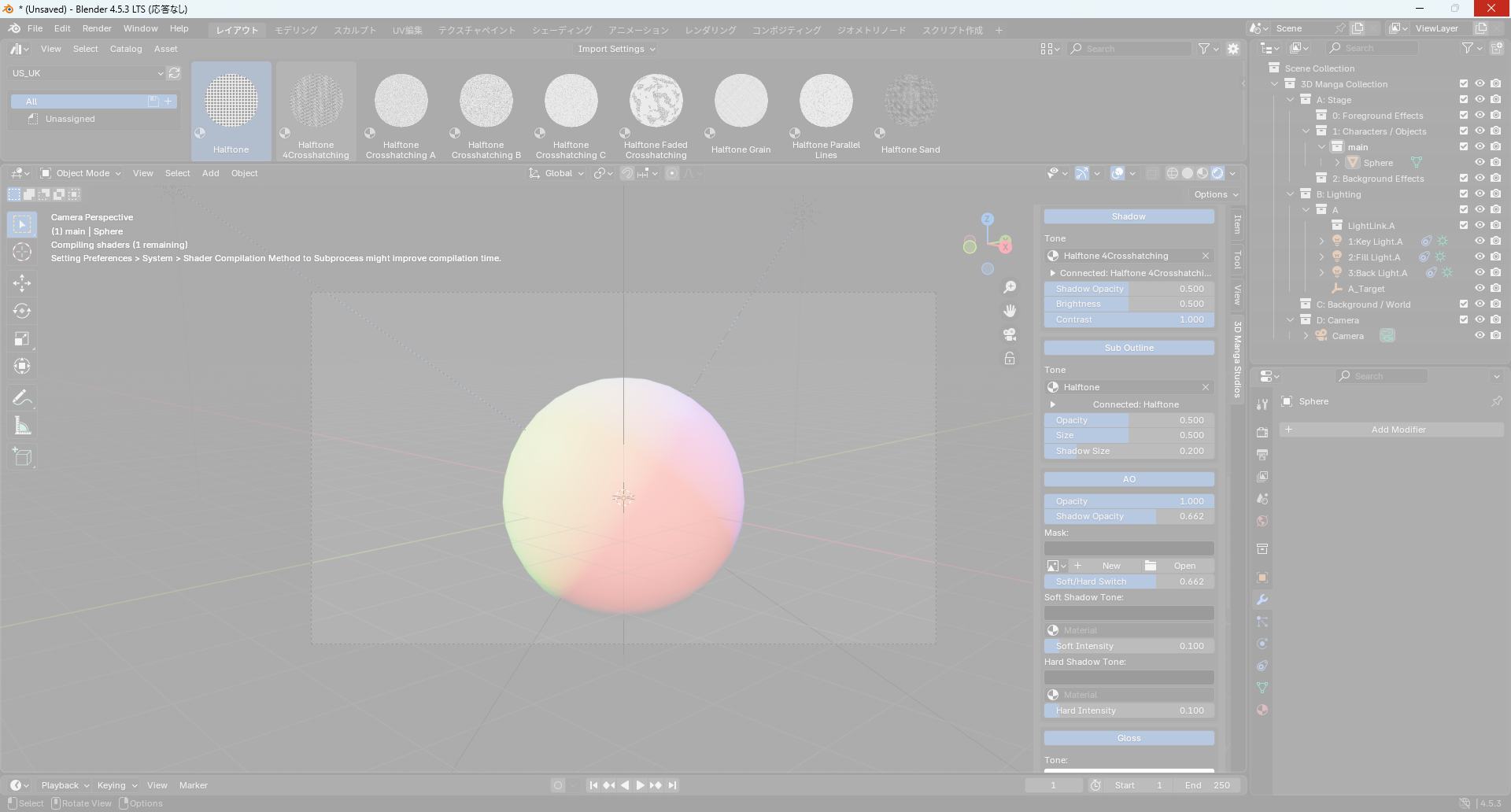
Caution
Assigning too many materials across multiple drop slots may cause issues:
| Freeze | Broken material |
|---|---|
 |
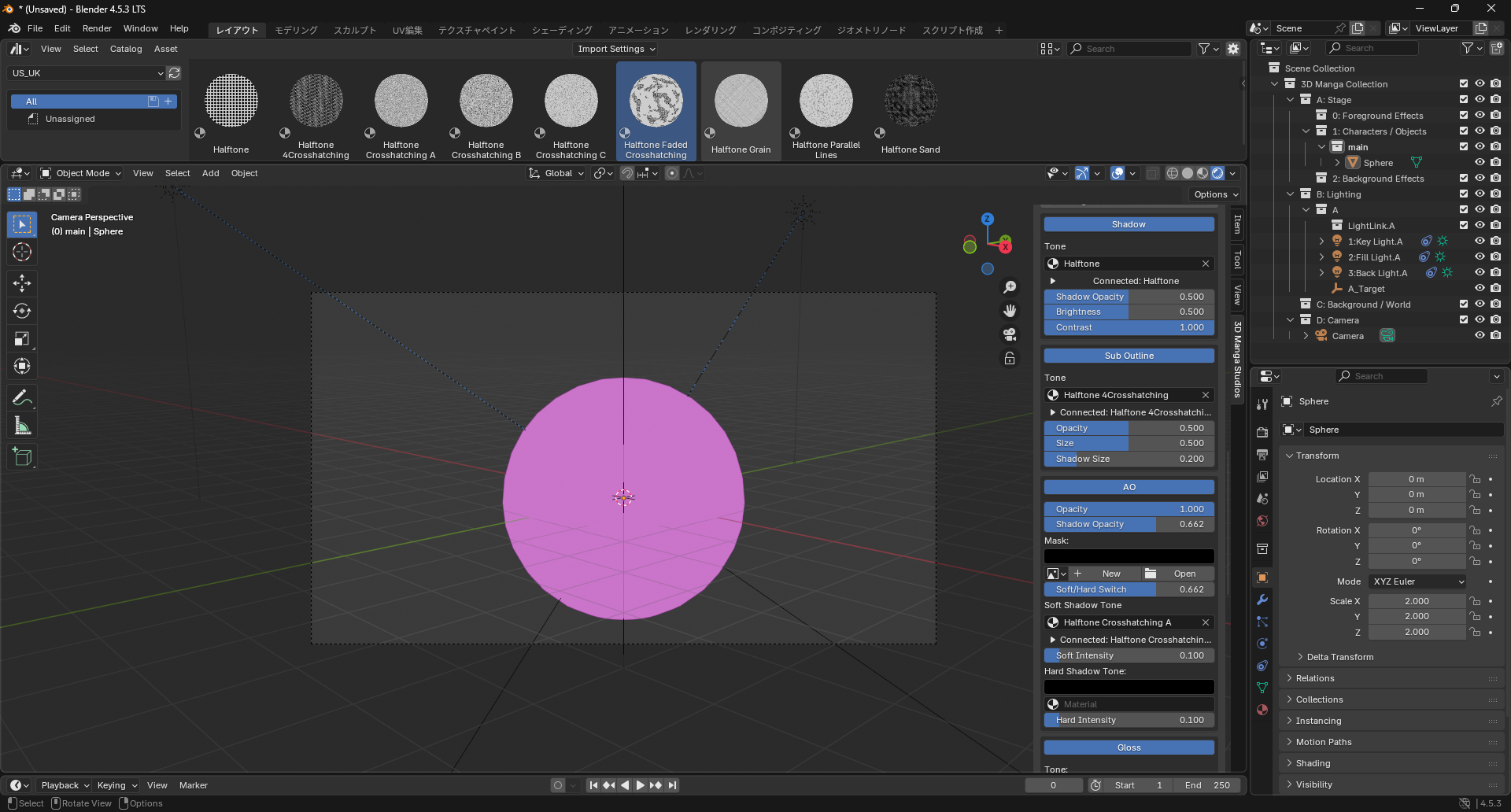 |
- Blender may freeze
- Materials may fail to display (pink/purple)
For stability, use up to around four drop slots as a guideline.
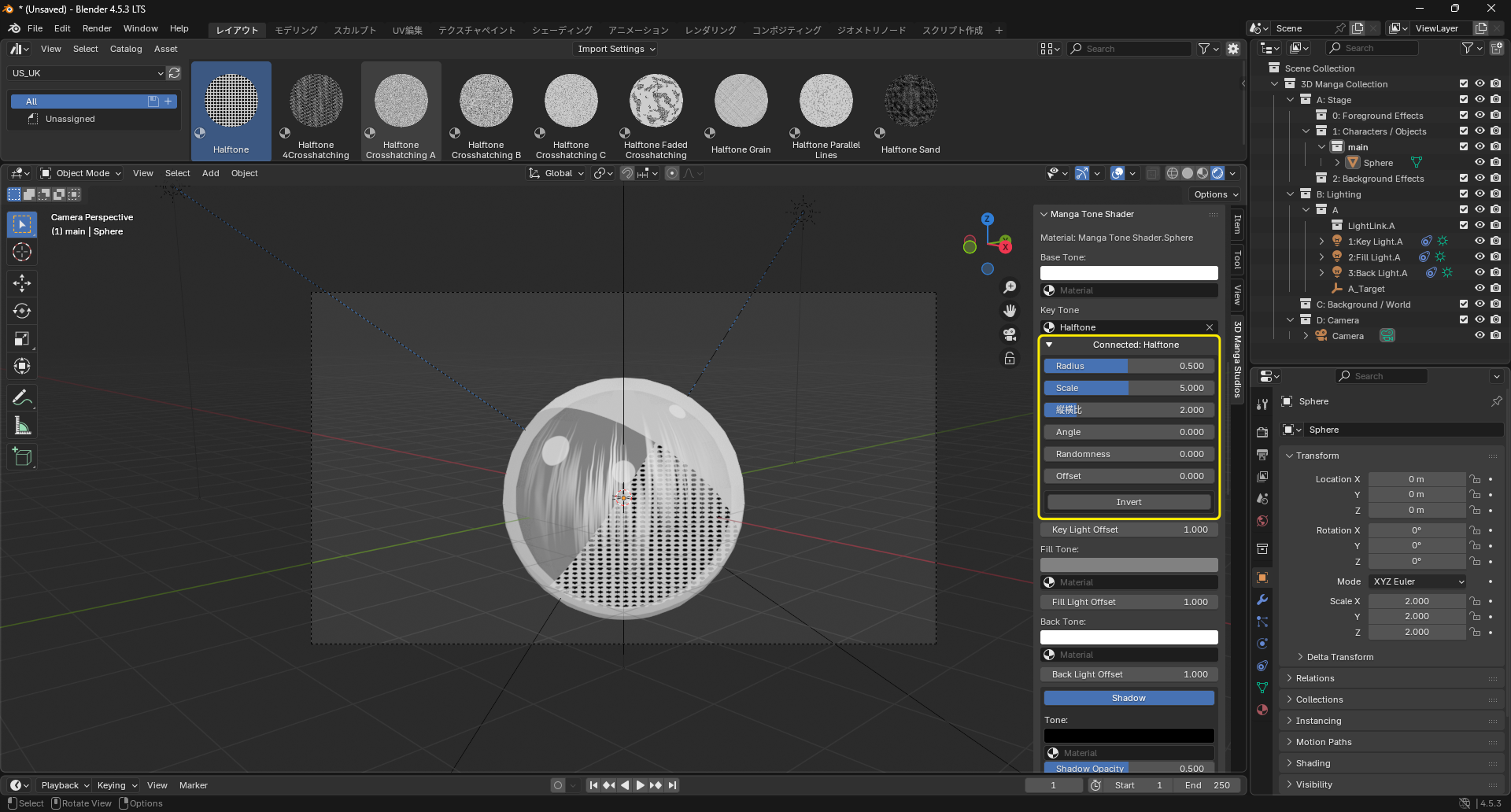
Properties of dropped materials
| Before | After |
|---|---|
 |
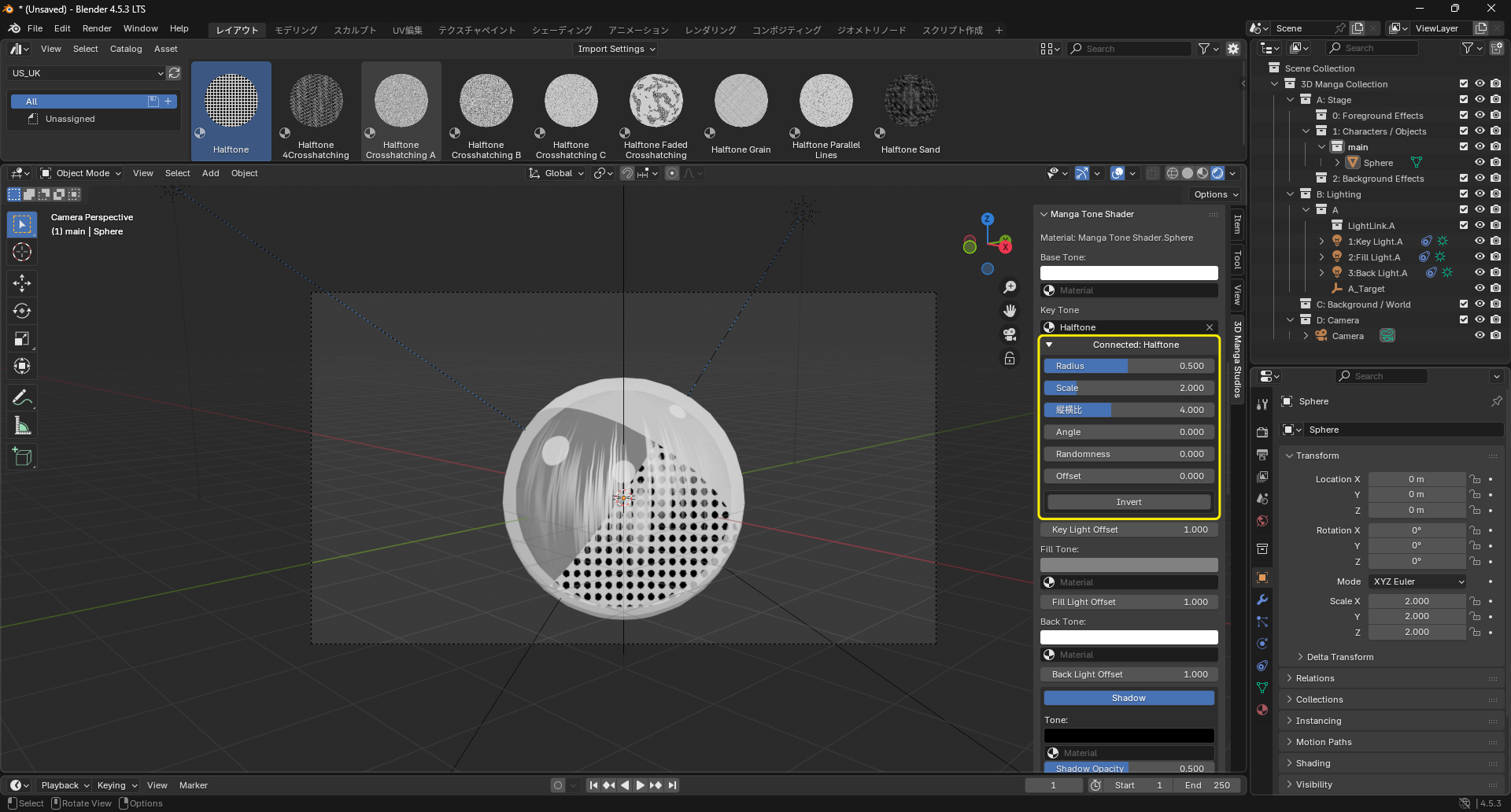 |
Adjust scale, rotation, etc. of dropped tone textures.
Learn more about Screen tone materials
Done!
That completes the five steps to build a manga scene. Even Blender beginners can construct a manga-like 3D scene in a few clicks. Now:
Use composition and camera work to draw your world.
Refer to the summary below.
Summary
| Step | Feature | Purpose |
|---|---|---|
| 1 | Generate 3D Manga Collection | Prepare collections/outliner for production |
| 2 | Camera Settings | Configure the render camera |
| 3 | Light Collection Management | Set up the lighting environment |
| 4 | Material & Outline Generation | Create materials and outlines |
| 5 | Tone Shader Tuning | Finalize tone rendering |